NPowerToys - V 0.86.0
Windows system enhancement toolbox released by Microsoft

Cross-platform Android Phone Remote Control Tool
0 Already downloaded Mobile view
Escrcpy is a graphical interface tool for Scrcpy built with Electron, used to display and control your Android device. It supports multiple platforms including Windows, macOS, and Linux.
Supports both WiFi and USB cable connections. In practice, USB connection allows keyboard and mouse control of the phone screen from the computer, while WiFi connection only displays the phone screen.
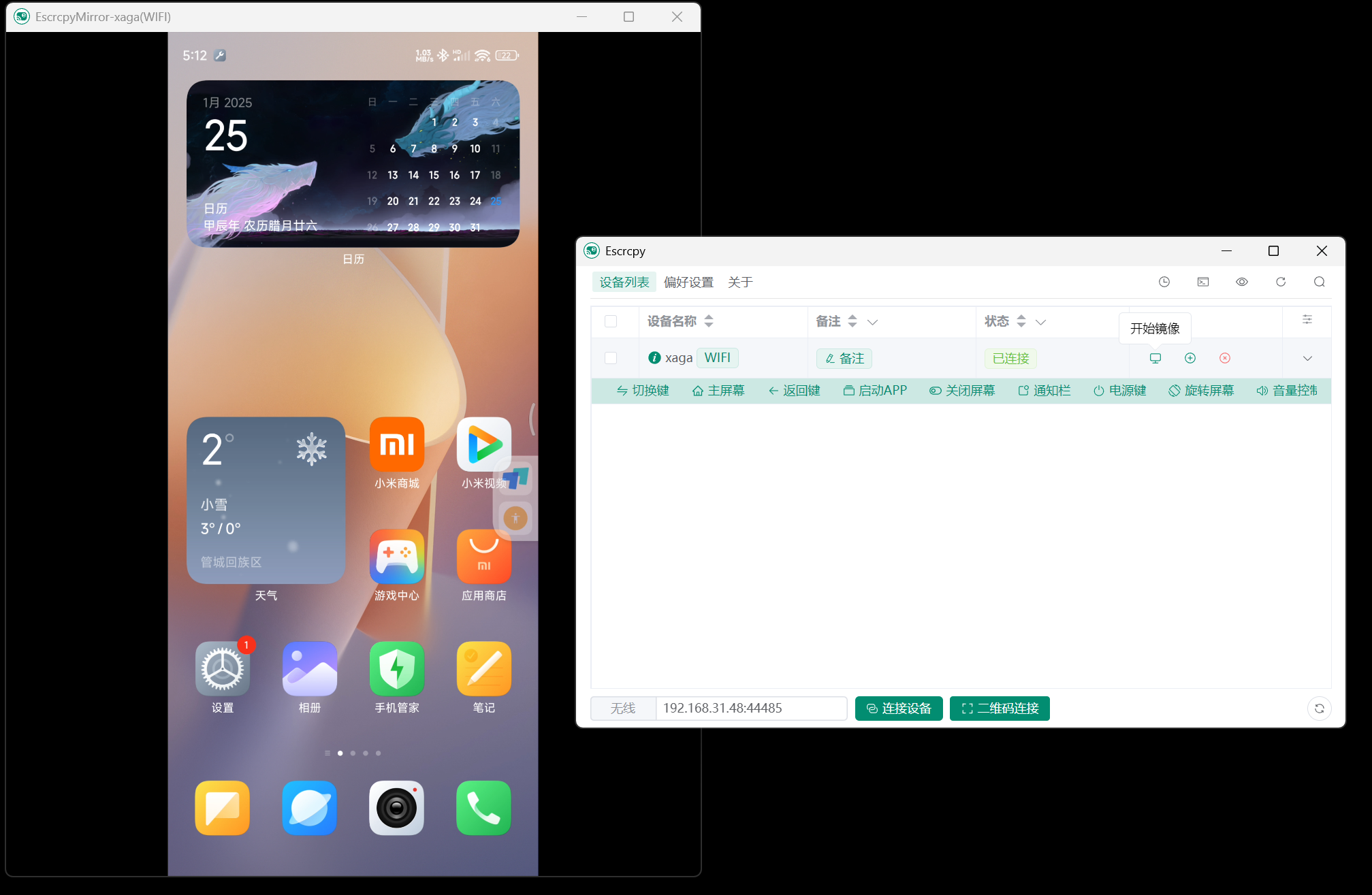
In addition to screen mirroring and remote control of phones, it can also manage multiple Android devices simultaneously, performing batch screenshots, app installation, file pushing, script execution, scheduled tasks, and more.
After connection, it can also record the phone screen, camera, audio, take photos, etc., and directly save the recordings to the computer.
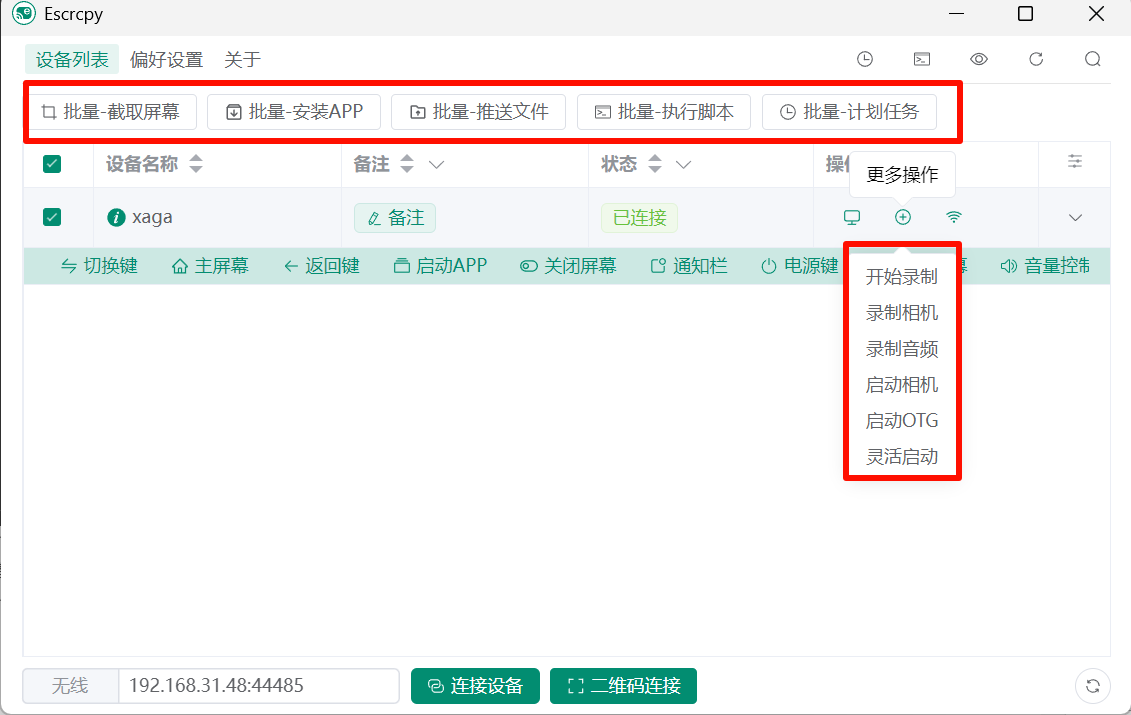
After installing the Escrcpy client on your computer, you can choose between USB connection and WiFi connection. Both methods require enabling Developer mode and USB debugging on the phone beforehand. Here I take a Xiaomi phone as an example.
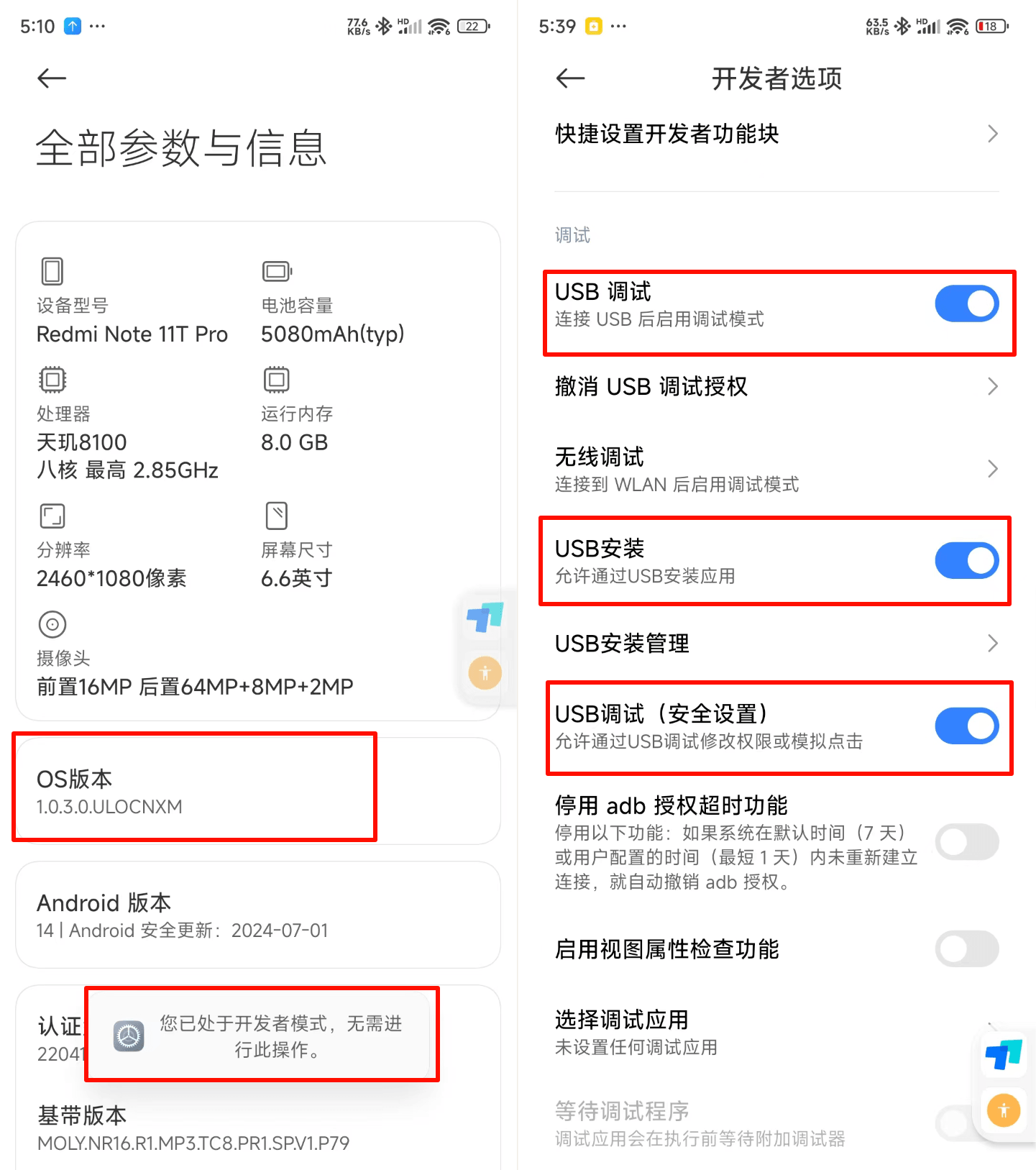
1. Settings – My Device – All Parameters & Info – Then repeatedly tap the OS version until ‘You are now in Developer mode~~’ appears.
2. Settings – More Settings – Developer Options – Enable USB debugging.
3. If using QR code wireless connection, tap Wireless debugging to scan and connect.
4. If you need to install apps, enable USB install; if you need to control the phone with a computer mouse, enable ‘USB debugging (Security settings)’.
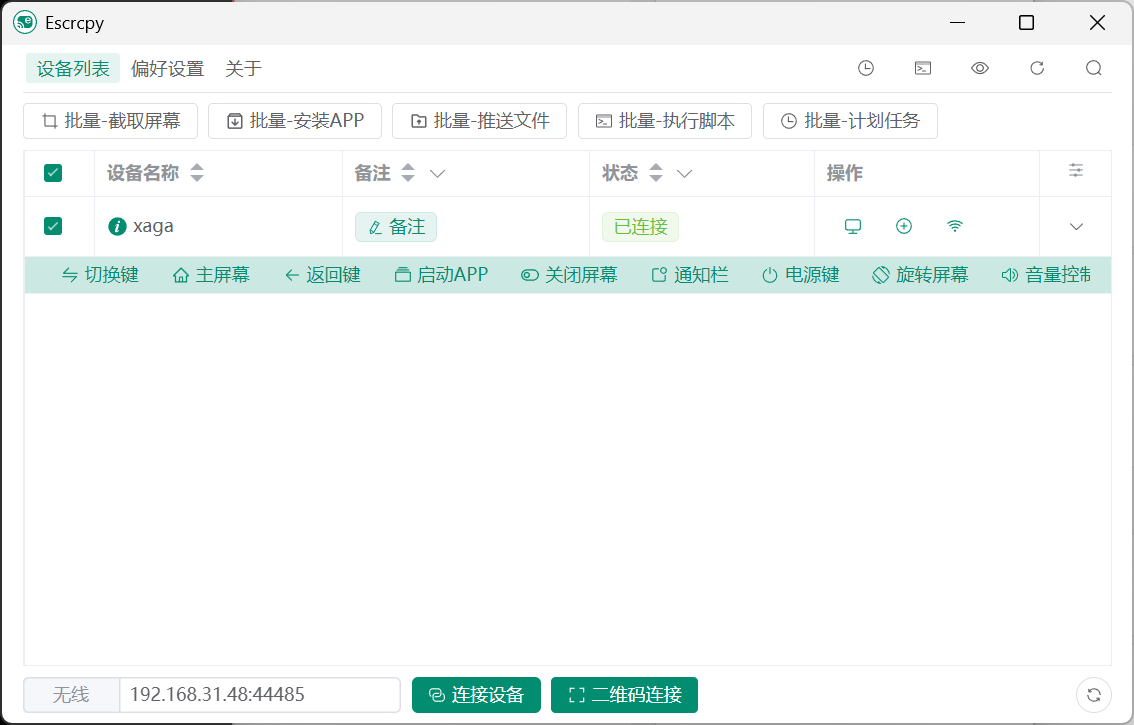
6. USB connection: Use a data cable to connect your Android phone to the computer. After completing the first two steps, it will automatically recognize your phone. Then click the ‘Connect Device’ button.
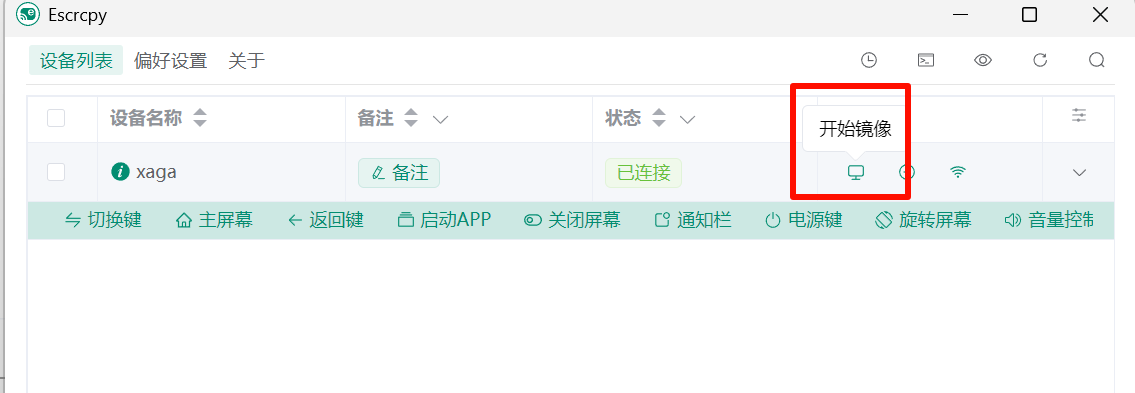
7. After successful connection, click ‘Start Mirroring’ to see the phone screen.
8. WiFi connection: In Developer mode, open and enter Wireless debugging, then scan the QR code on Escrcpy to pair and connect.