
Kaka Subtitle Assistant - v1.33
A video subtitle processing assistant based on large language models (LLM), supporting full workflow: speech recognition, subtitle segmentation, optimization, and AI subtitle translation
Free, open-source notes and to-dos with offline editing and optional cross-device sync.
10 Already downloaded Mobile view
Joplin is a free, open-source note and to-do app for Windows, macOS, Linux, Android and iOS. Notes are stored locally first, so you can read and edit them offline; set up a sync service when you want the same library on other devices. It is useful for study notes, work records and moving an existing Evernote collection.
The overview below follows Joplin’s documentation and desktop release notes. Its features are broad, but syncing and encryption require deliberate setup rather than happening automatically after installation.
Organise notes into notebooks and use tags to connect topics across them. Full-text search helps find older material. Joplin offers both Markdown and rich-text editing, and notes can contain images, audio, video, PDFs, mathematical expressions and diagrams. To-do notes let you keep meeting records and follow-up tasks in one place.
You can import Evernote ENEX files or Markdown files. The Web Clipper extension for Chrome and Firefox captures web pages and screenshots. Plugins and themes add editing, organisation and appearance options.
Joplin separates local note-taking from cloud sync. A single-device notebook needs no paid cloud account. For multiple devices, official options include Joplin Cloud, Nextcloud, Dropbox and OneDrive. Account requirements, storage limits and setup steps depend on the chosen service.
End-to-end encryption is optional and must be enabled manually. Joplin recommends enabling it and completing a sync on one device before adding others. Keep the encryption password safely: support for encryption does not mean all synced notes are encrypted immediately after installation.
1. Download the client for your operating system from Joplin’s official installation page. Desktop builds are also available through the official GitHub release page. Mac users should choose the build for Apple silicon or Intel. Version and file-size details below concern the desktop release; use the official store page for a mobile build.
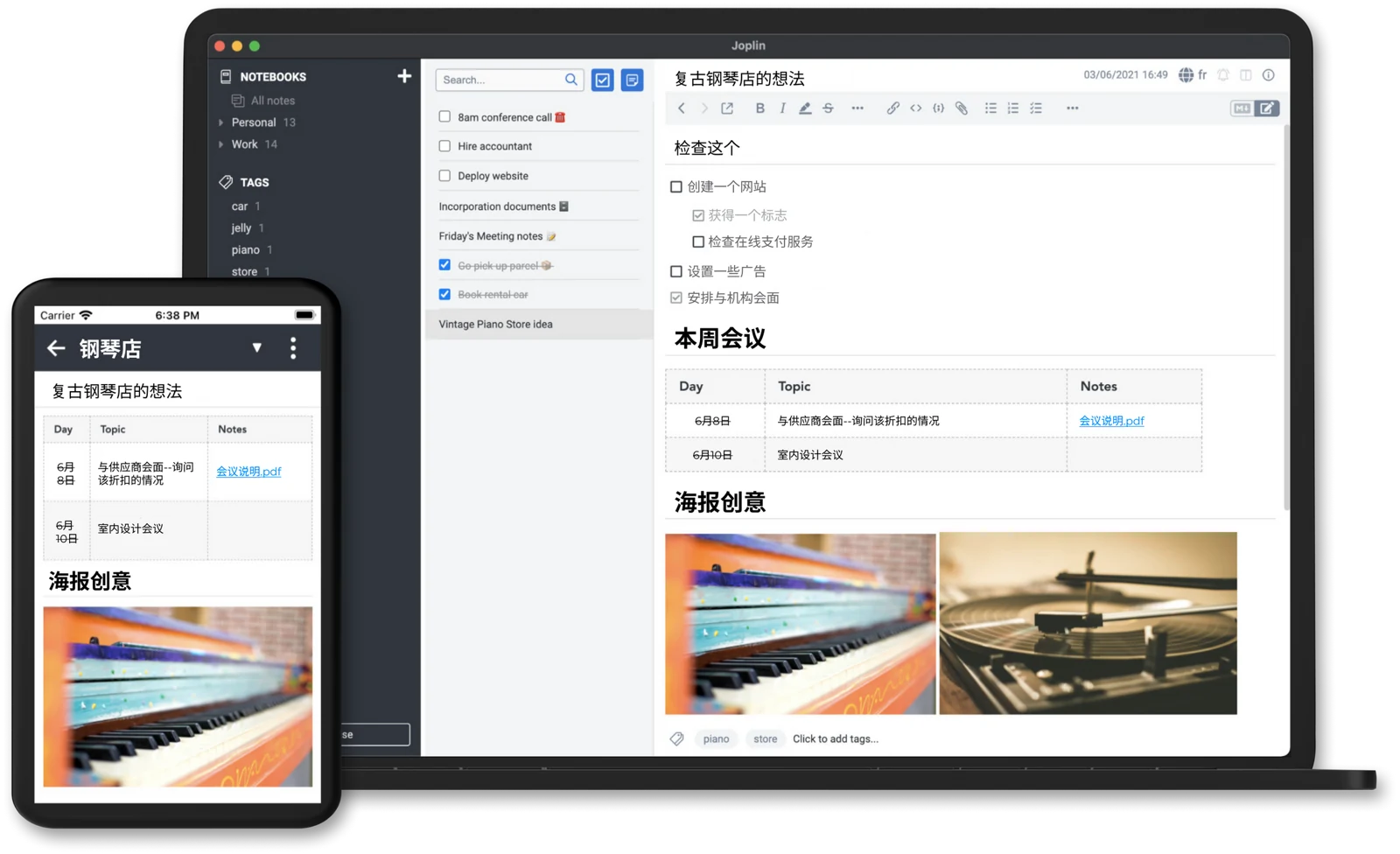
2. Create a notebook, such as Study Notes, then add a first note. Write a short paragraph, attach an image or file and add a tag. The official illustration below shows how notebooks, the note list and the editor appear across desktop and mobile layouts; controls may move between versions.
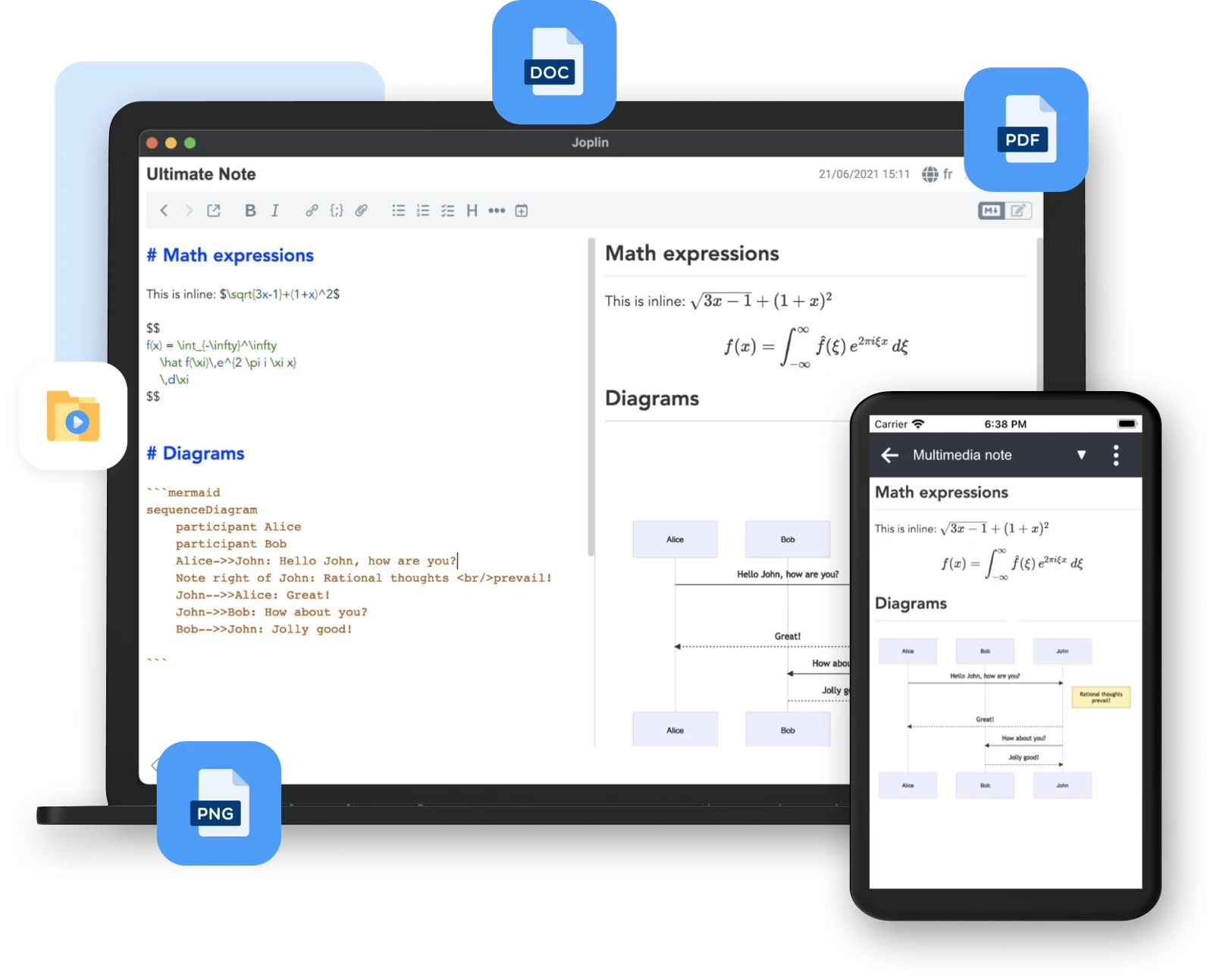
3. Choose rich-text or Markdown editing. If you use formulas, code examples or diagrams, check the rendered preview. The next official illustration shows mathematical expressions and a diagram in the editor, preview and phone view.
4. To work across devices, choose the same sync service in each client’s settings and authorise access. Let the first device finish syncing before adding a phone or another computer. If you want end-to-end encryption, enable it on the first device, finish syncing, then enter its password on the other devices.
Students can keep course notes, formulas and PDFs together. Developers can store commands, code snippets and troubleshooting notes. At work, Joplin can archive meeting notes, clipped pages and to-dos. It is especially appealing if offline access and a choice of sync provider matter more than instant setup.
The Joplin clients are free and open source. The repository’s default licence is AGPL-3.0-or-later, while some subdirectories have their own licence notices. Joplin Cloud is an optional paid hosted-sync service with sharing features according to plan. Other sync providers may impose their own storage limits or fees.
Joplin combines offline notes, clients on several platforms and a choice of sync providers in a practical way for a long-term personal archive. Importing an old collection deserves a check afterward, and multi-device sync and encryption need to be configured in order. If immediate browser-based team editing is your main need, compare its collaboration options and plan limits first.
As of September 13, 2026, the latest stable desktop release was version 3.7.18, published September 12 in China time. Its fixes included WebDAV sync HTTP 409 errors, HTTPS redirects and Markdown rendering, with improvements to OneNote import and whiteboard handling. The Windows installer was about 344.12 MiB; file sizes vary by platform. Check official releases for newer builds.