LosslessCut - v3.66.1
Open-source free lossless audio/video editing tool

Play videos on a computer connected to a TV and control them from a phone browser.
10 Already downloaded Mobile view
TinyPlay turns a spare Windows PC or Mac connected to a TV into a living-room media player. Scan its QR code with a phone to open the browser-based remote, then choose a video, pause playback or seek without operating the computer from the sofa.
It suits households that already have a computer and a TV and want to play their own files or media-server library on the larger screen. The phone and computer need to be on the same local network. This overview follows the project’s documentation and desktop release notes.
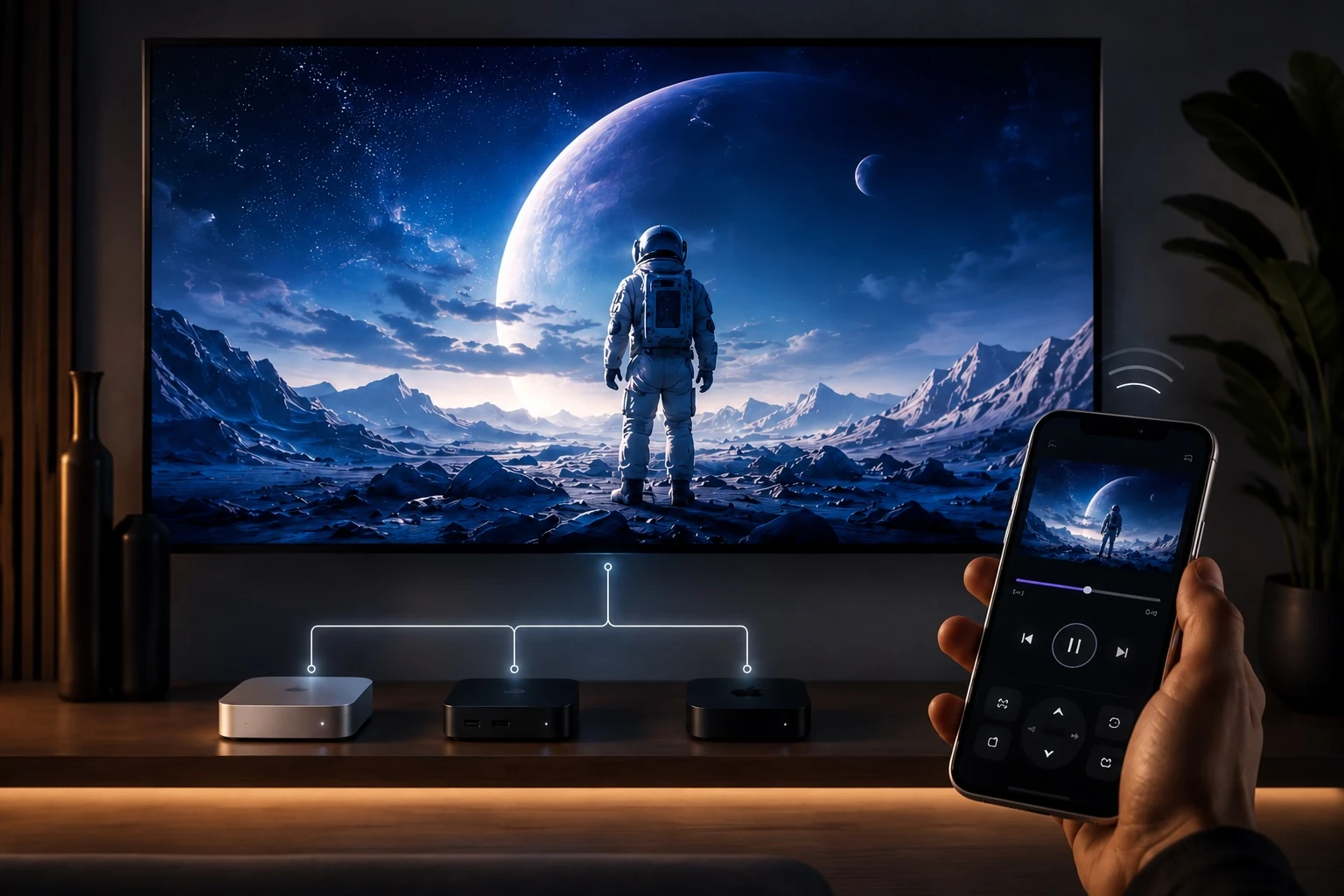
Connect Emby, Jellyfin or Plex to browse posters, search for films, select episodes and resume playback from your phone. If you already maintain a library in one of these services, the computer connected to the TV can handle playback.
For files stored locally or on home storage, TinyPlay can browse local folders, SMB shares and WebDAV locations. SMB is a common way to share files on a home network; WebDAV uses a network address. You need the correct address and access permissions before adding a share. Multiple media sources can be added and switched between.
TinyPlay also includes a web browser for viewing video sites on the TV. Its IPTV mode accepts a channel playlist and offers favourites and viewing history. Compatible DLNA apps can cast to it over the local network, with playback still controlled from the phone. Accounts, subscriptions and viewing rights on video sites remain subject to those services.
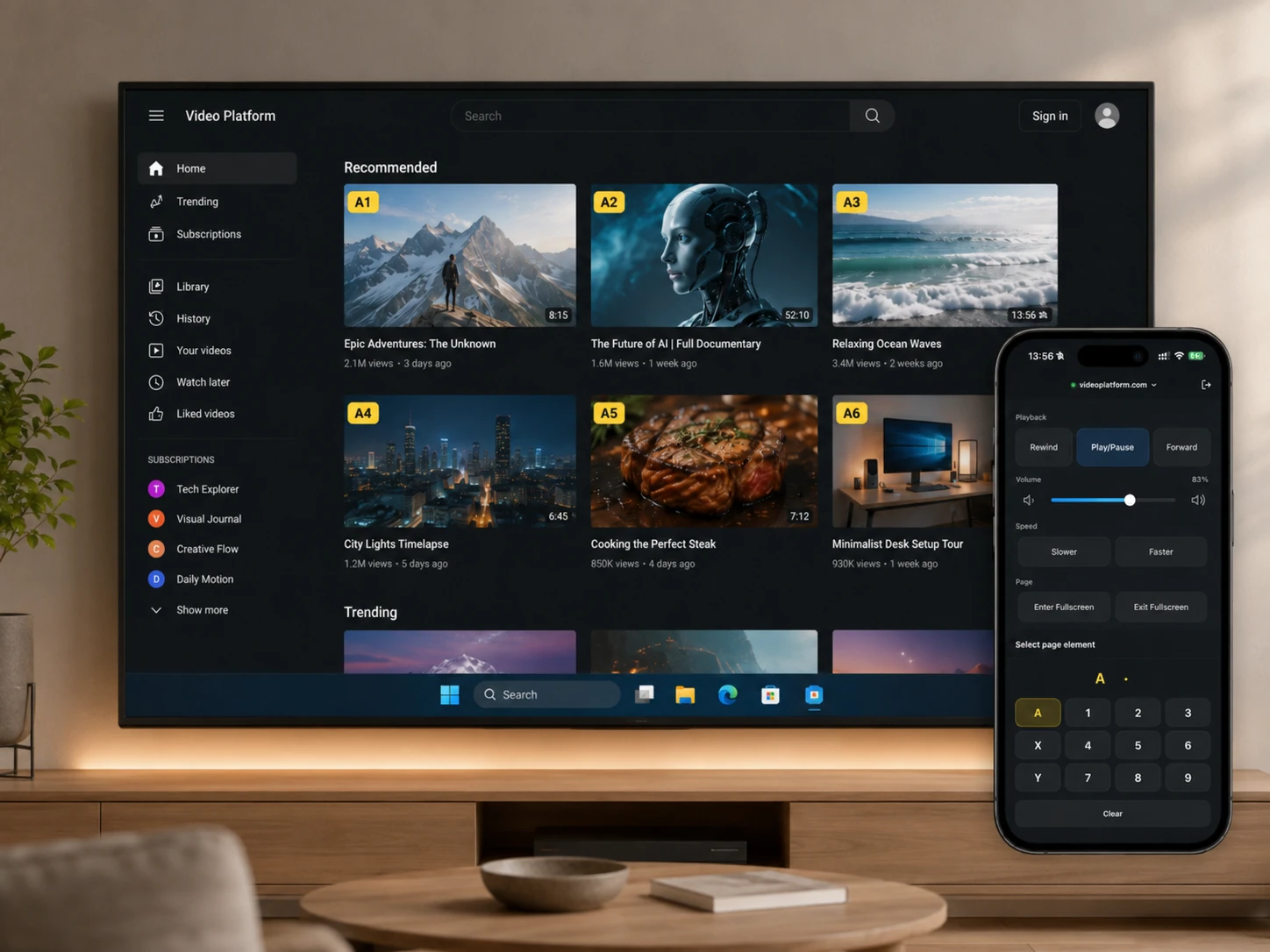
The phone remote runs in a browser, so there is no separate remote-control app to install. Playback on the computer uses mpv. The project lists support for formats and features including MKV, HDR, Dolby Vision, TrueHD and PGS subtitles. Actual picture and audio output still depend on the file, computer, display and connections.
For Windows, use 64-bit Windows 10 version 1607 or newer. On macOS 14 and later, the bundled player can be used. TinyPlay can run on macOS 12 or 13, but those systems require a compatible mpv installation. The project also has an Apple TV edition; the version, file sizes and download instructions here refer to the desktop edition.
1. Download the desktop installer from the official site or GitHub Releases. On Windows, choose TinyPlay-Setup-x64.exe and run the installer; it adds desktop and Start-menu shortcuts. The Windows installer is currently unsigned, so SmartScreen may appear. Check that the file comes from the project’s official download page.
2. On a Mac, select the arm64 or Intel DMG for your processor and drag TinyPlay into Applications. On macOS 12 or 13, first install a compatible mpv.app in Applications, then restart TinyPlay. If mpv lives elsewhere, select it under Advanced Settings → Custom MPV Player.
3. Connect the computer to the TV with HDMI and put the phone and computer on the same local network. Launch TinyPlay, scan the displayed QR code with the phone and open the remote in its browser. Try a local video first; add a media server or network share after basic playback works.
4. Select a video on the phone and start playback. The remote also provides seeking, subtitle, audio-track and speed controls. You must supply your own media server, shared files or IPTV playlist; TinyPlay does not include films or channels.
A spare mini PC can become a dedicated player for a living-room TV. Emby, Jellyfin and Plex users can browse their existing collection from a phone, while a household with files on a shared drive can navigate by folder. The browser controls can also reduce keyboard and mouse use when watching a video site on the big screen.
The desktop application is free to download from the official project and is licensed under GPL-3.0; bundled components follow their respective licences. You still need a computer, TV and network equipment. Connected media services or video sites may charge separately.
The useful combination is phone-based selection with playback on an existing computer. Starting with the installer, QR code and a local file is straightforward. Media-server accounts and network shares take more setup, and the computer must stay running during playback. Check the Mac player requirement if you use an older macOS release.
As of October 13, 2026, the project’s latest stable desktop release was version 1.0.7, published August 27, 2026. It fixed false Windows reports that the bundled mpv could not run and false rejection of a custom mpv.exe selected in Advanced Settings. The Windows installer was about 46.16 MiB, the Apple-silicon DMG about 38.24 MiB and the Intel Mac DMG about 42.06 MiB at that release. Check the official release page for newer builds.