OpenScreen - v1.0.0
Free and open-source screen recording tool, the best alternative to Screen Studio

Free and Open-Source AI Image Upscaler
1 Already downloaded Mobile view
Upscayl is a free and open-source AI image upscaler. Its core logic uses advanced AI models (such as Real-ESRGAN) to reconstruct pixels, thereby enlarging low-resolution images by 4x or more without losing (and even improving) image quality.
Unlike many “fake free” or cloud-based tools on the market, Upscayl’s greatest advantage is its local processingIt does not need an internet connection, does not upload your images, and fully utilizes your computer’s GPU to do the work, protecting privacy while being hardcore and efficient.
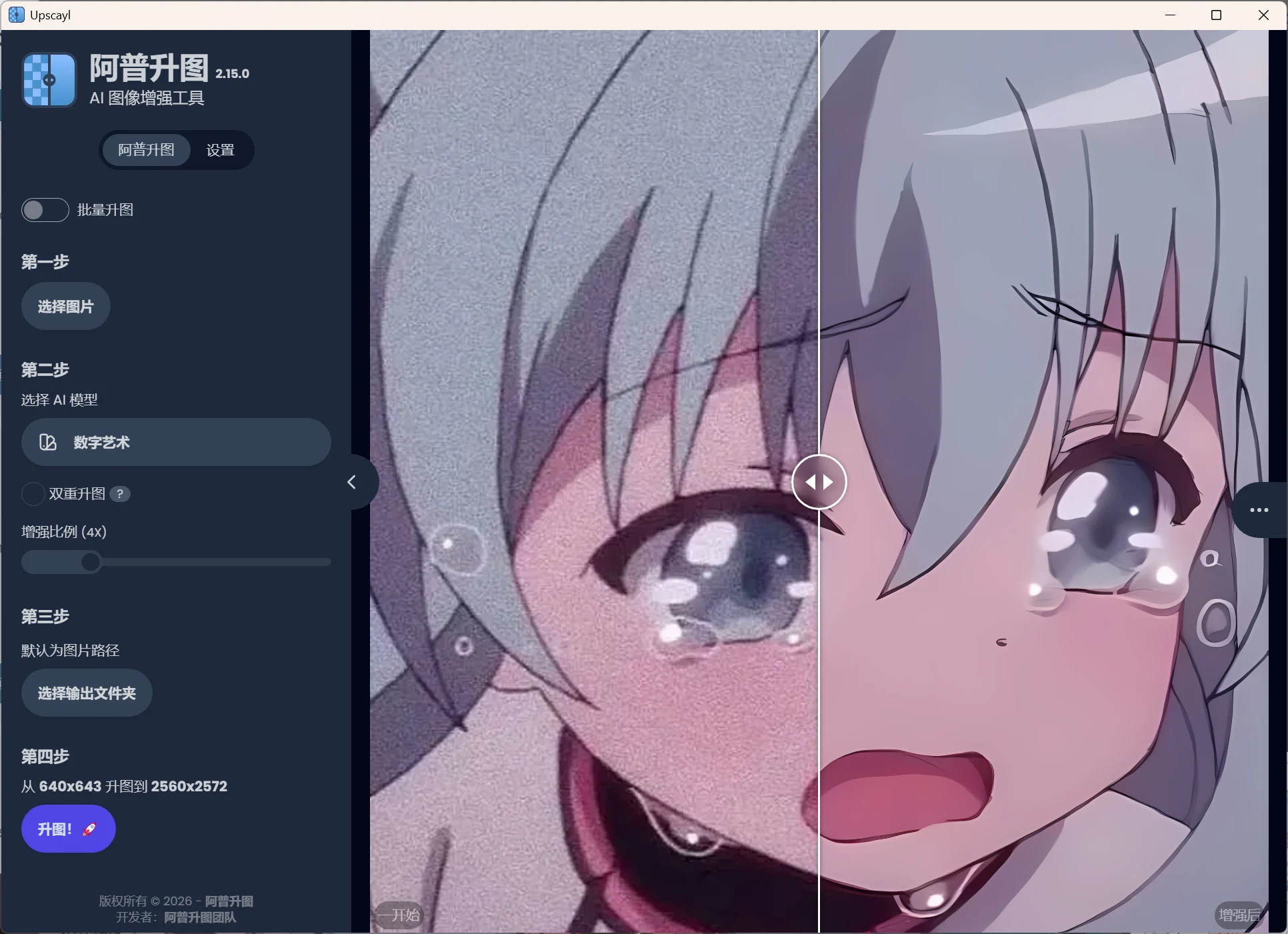
Built-in multiple models for different scenarios: you can switch models based on your image style.
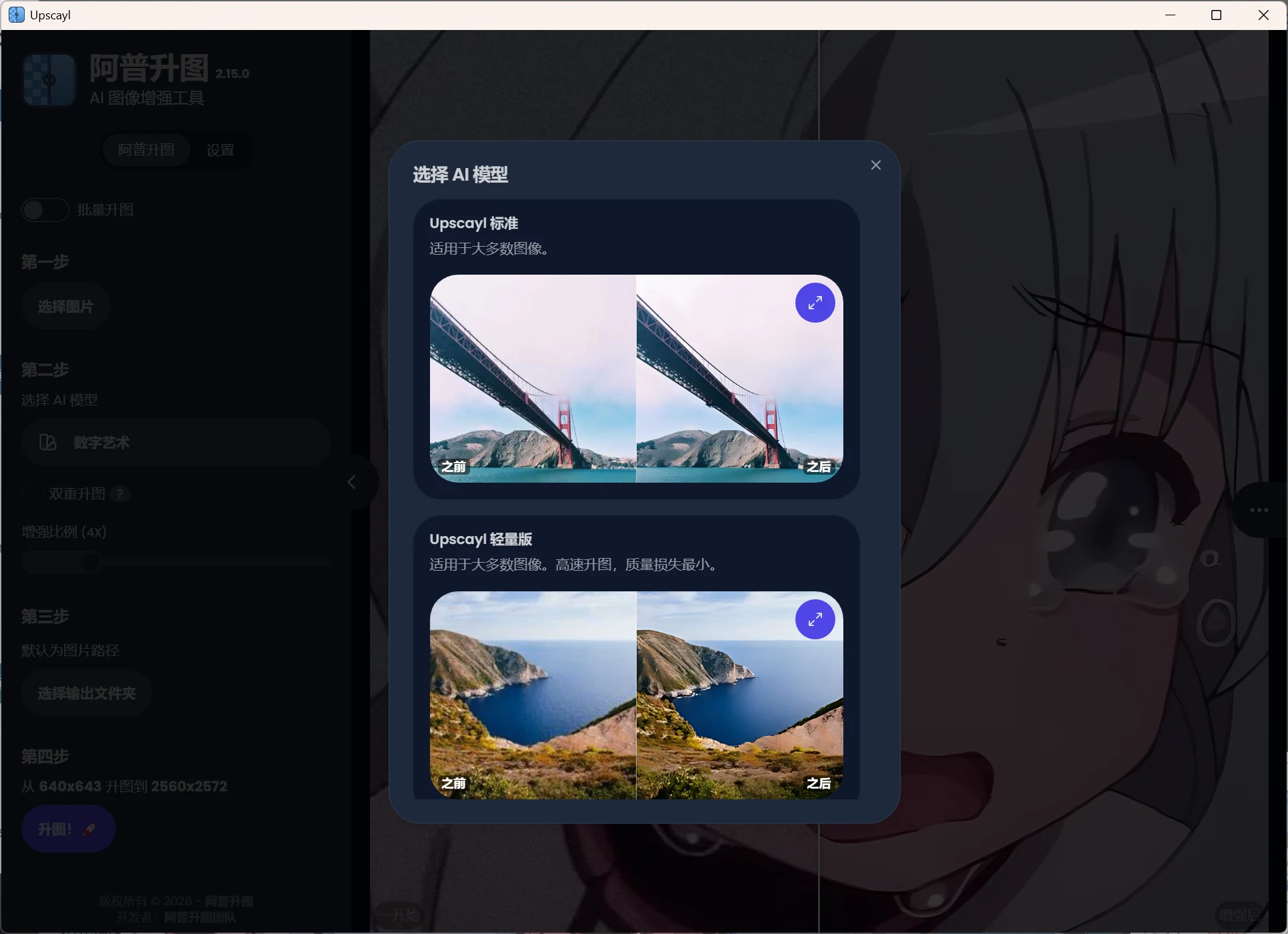
Batch Upscale: Supports importing an entire folder of images at once for queued processing, hands-free.
Double Upscayl: If 4x upscale is not enough, enable this to achieve 16x upscale (requires higher hardware specs).
Upscayl’s interface is very simple—essentially “foolproof” operation in three steps:
Real-ESRGAN, and for anime images, choose Digital Art.