
TranslucentTB - v 2024.3
A Windows taskbar transparency/semi-transparency tool
Open-source, free tool for quickly creating bootable USB drives and formatting USB drives
1.5MB1 Already downloaded Mobile view
Rufus is a small, open-source and free tool for quickly creating bootable USB drives. It is ad-free and makes it easy to create Windows, Linux, and UEFI bootable USBs. It’s an essential tool for reinstalling your computer’s operating system.
This tool is recommended by Steam and can create a Windows 11 installer that bypasses TPM requirements for computers without TPM or Secure Boot. It supports a portable version and is very lightweight at only 1.5MB.
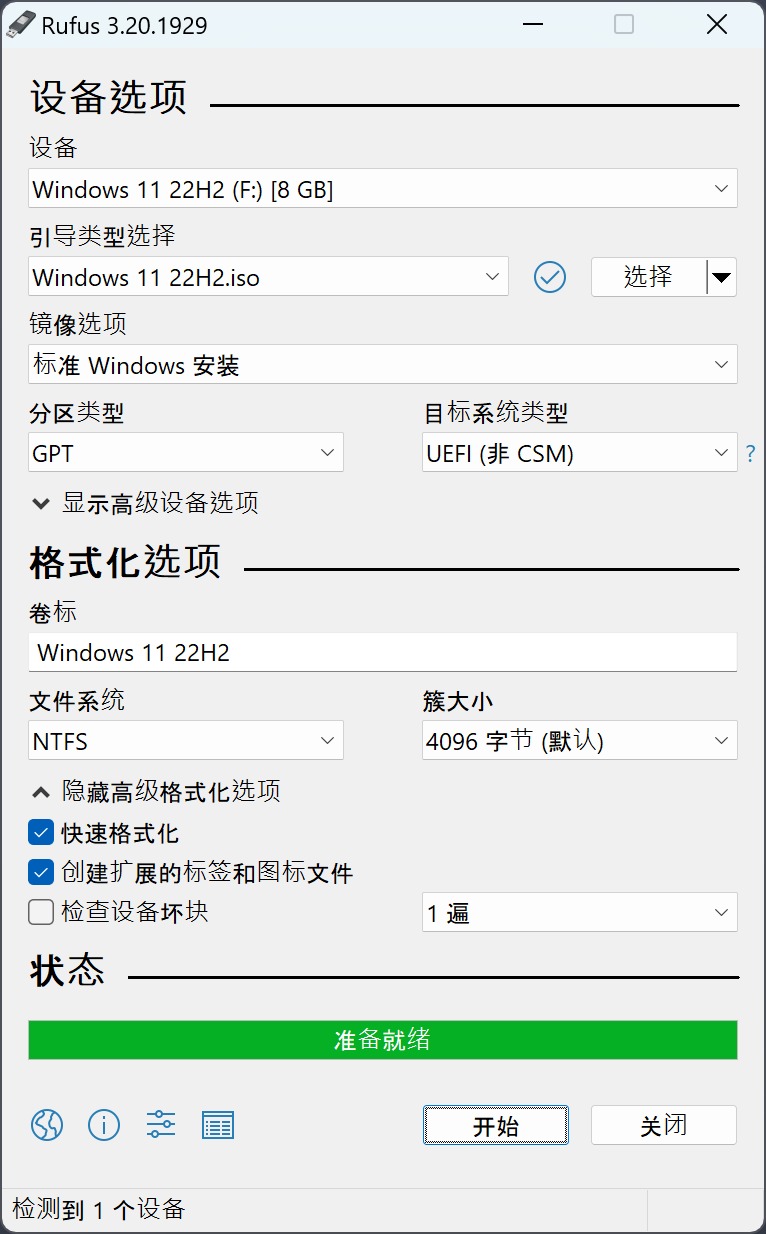
Below is a guide on creating a bootable USB with Rufus, showing how easy it is to reinstall your system.
1. Prepare a blank USB drive of 8GB or larger (Note: The process will format the USB drive, so back up your data first).
2. Download the system image file. If you don’t know where to get the ISO, go to:https://www.tboxn.com/favorites/%e7%b3%bb%e7%bb%9f%e9%95%9c%e5%83%8f
3. Download Rufus and plug your USB drive into the computer.
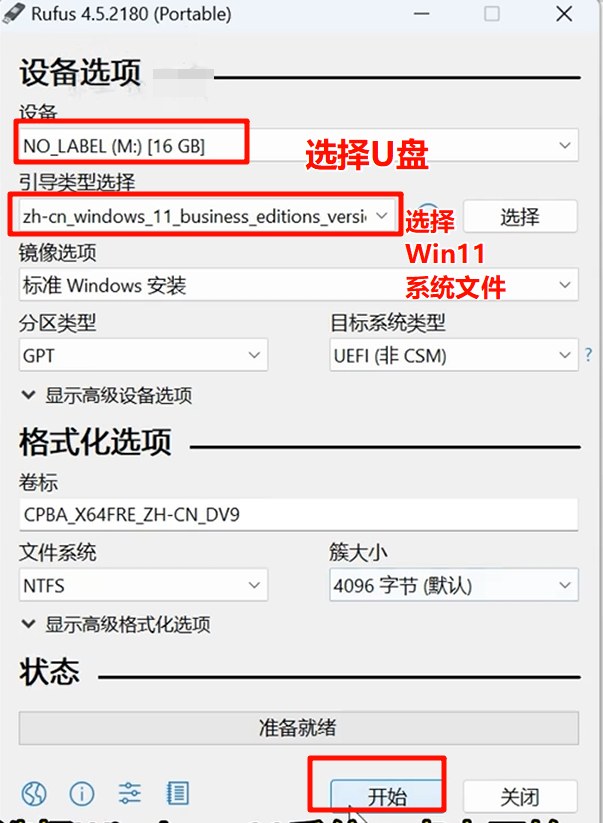
4. Open Rufus. In the Device field, select your USB drive. For Boot selection, choose your downloaded Windows 11 ISO or other system image. Other options can be left at default. Then click Start.
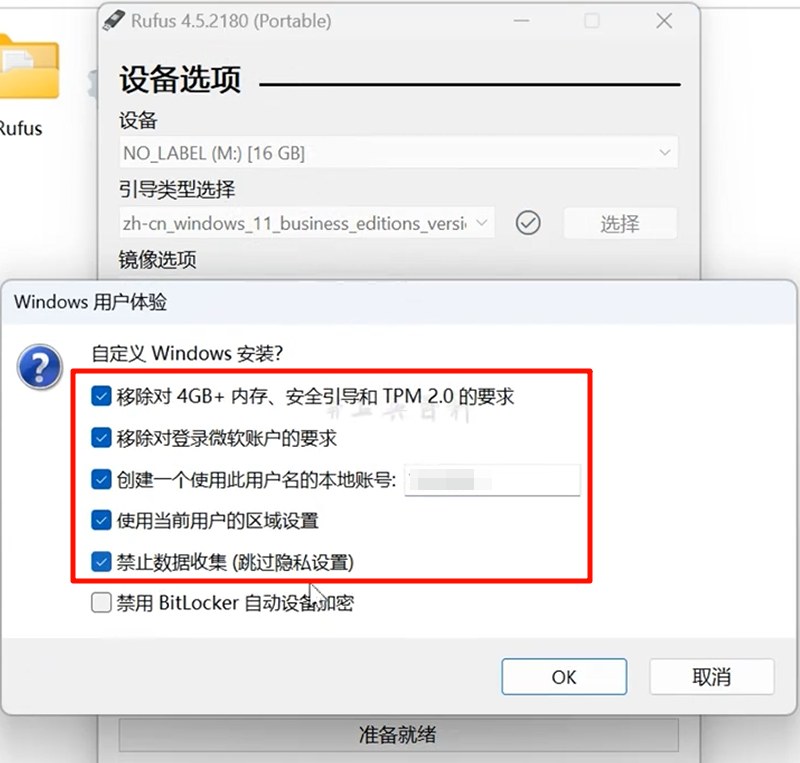
5. If your computer hardware does not support Windows 11, check the first option. Check other options as needed. Then wait for the bootable USB to be created.
6. After creating the bootable USB, plug it into the computer that needs a system reinstall. Refer to the table below to find the shortcut key for entering the boot menu for your computer.
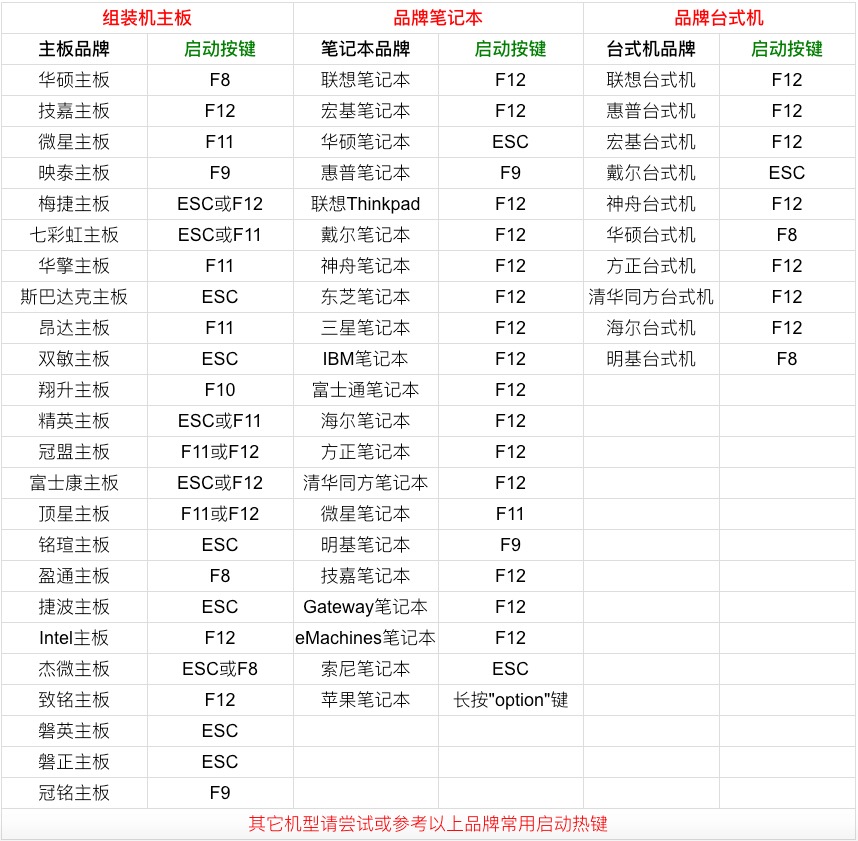
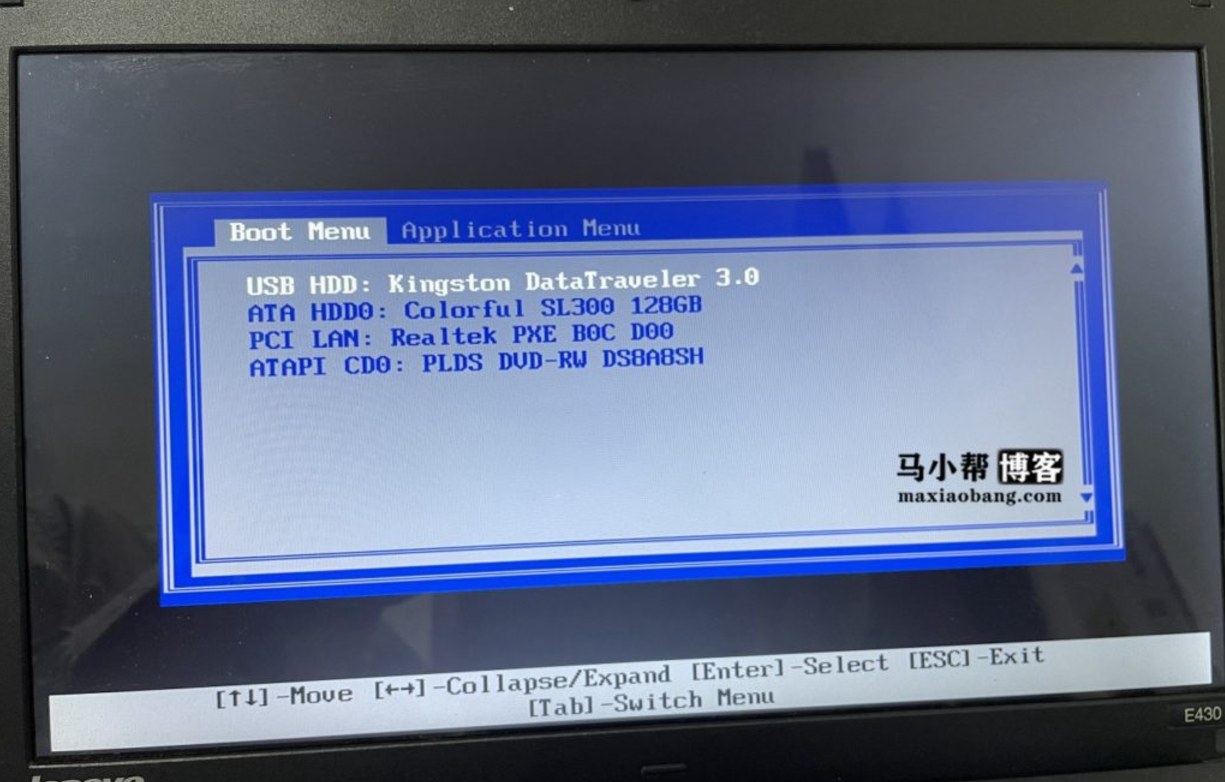
7. Plug in the USB, turn on the computer, and repeatedly press the shortcut key (usually F2 or F12) to enter the boot menu. Then select your USB drive and press Enter.
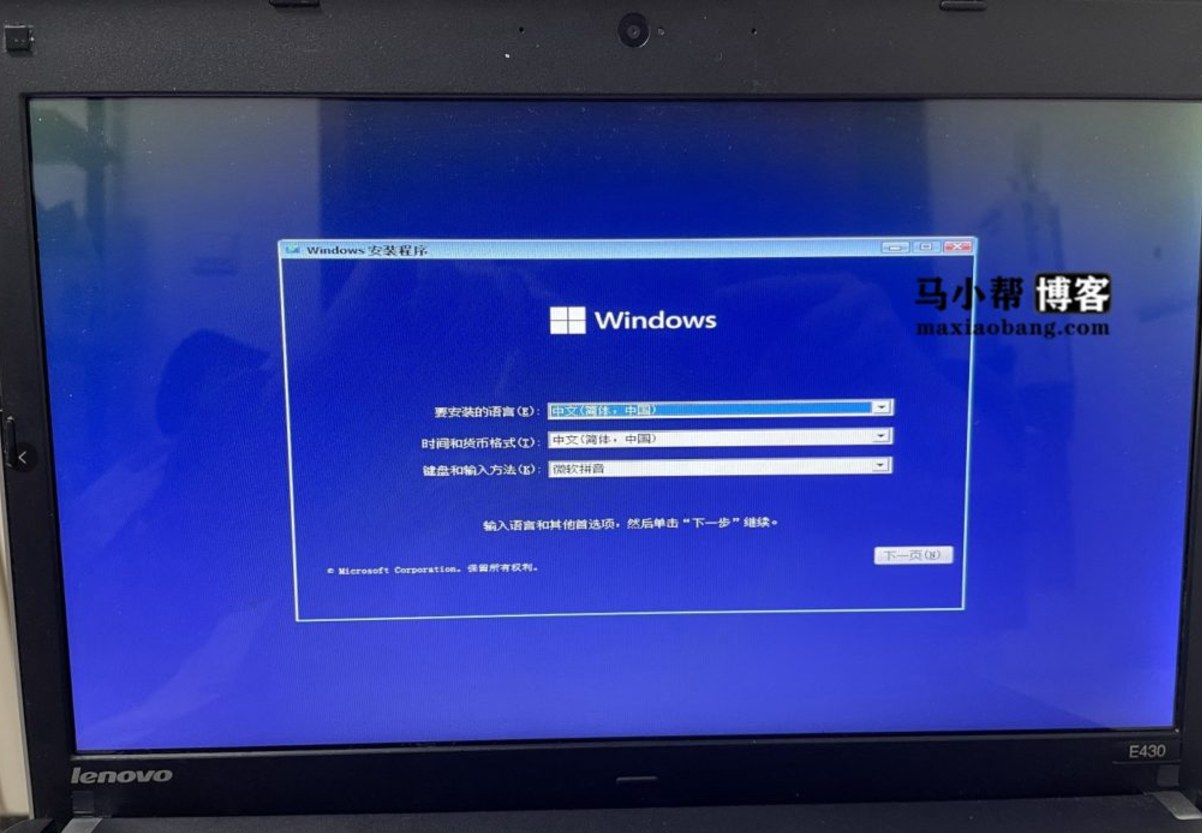
8. Then you will enter the Windows installation process. Follow the prompts step by step!
Official Website:https://rufus.ie/zh/
GitHub:https://github.com/pbatard/rufus
Microsoft Store:https://apps.microsoft.com/detail/9pc3h3v7q9ch?hl=zh-cn&gl=US