
MAS (Microsoft Activation Scripts) - v 2.9
Permanently free activation for Windows and Office

Open source system cleaning tool for Windows 10 and Windows 11
2 Already downloaded Mobile view
When it comes to Windows system cleaning tools, many people’s first thought might still be CCleaner.
Such tools were indeed quite useful in the past, but later many products gradually added pop-up recommendations, membership upgrades, registry acceleration, driver updates, and other features. Originally just wanting to clear the cache, you end up feeling like you’ve installed a full suite of PC manager software.
Until a couple of days ago, I was browsing GitHub and discovered something called FluentCleaner. It’s free, open source, and has no ads!
FluentCleaner is an open-source system cleaning tool for Windows 10 and Windows 11, created by developer builtbybel.
It is developed using WinUI 3, so its overall interface is similar to Windows 11’s Settings page, without the outdated look of traditional system tools from a decade ago.
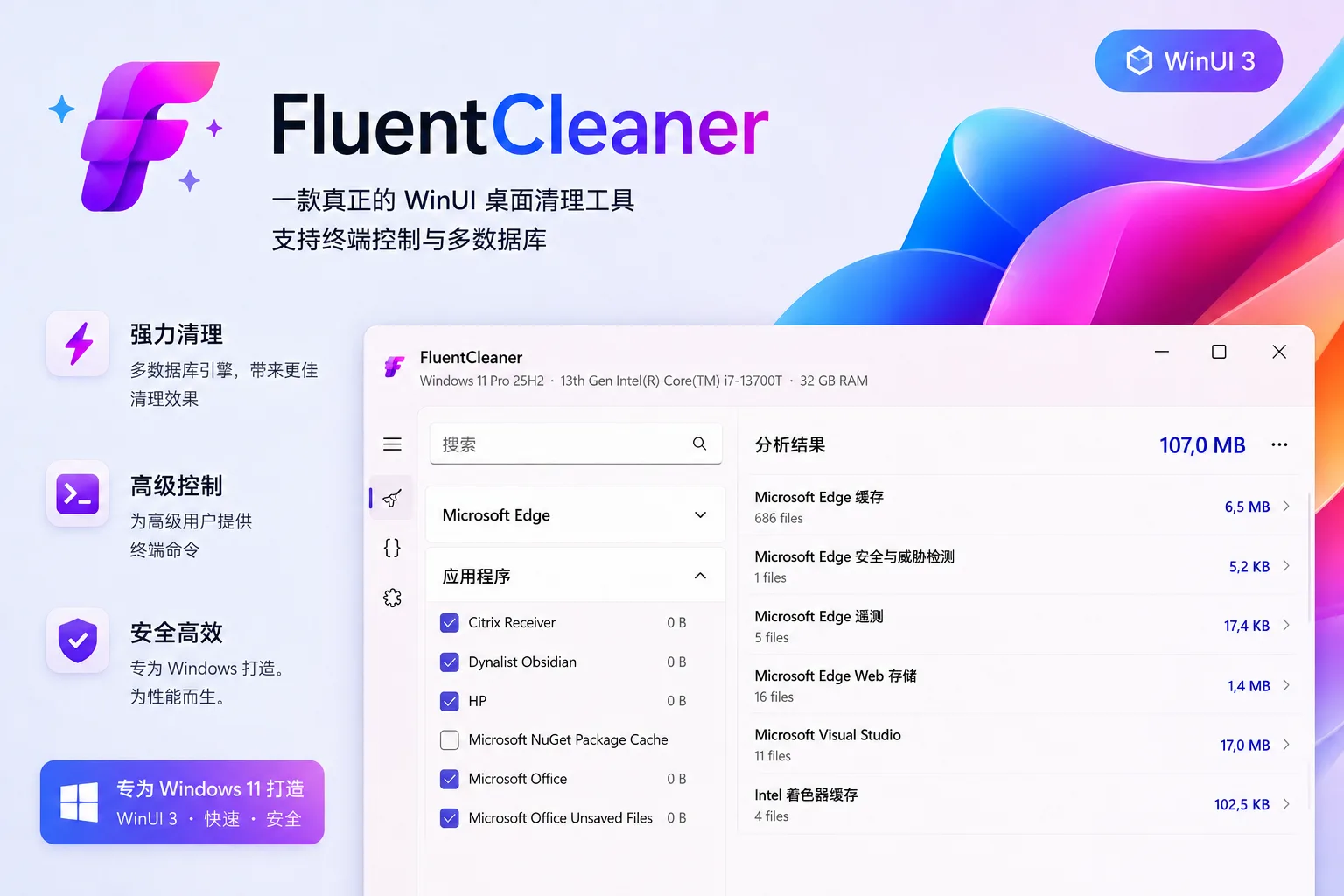
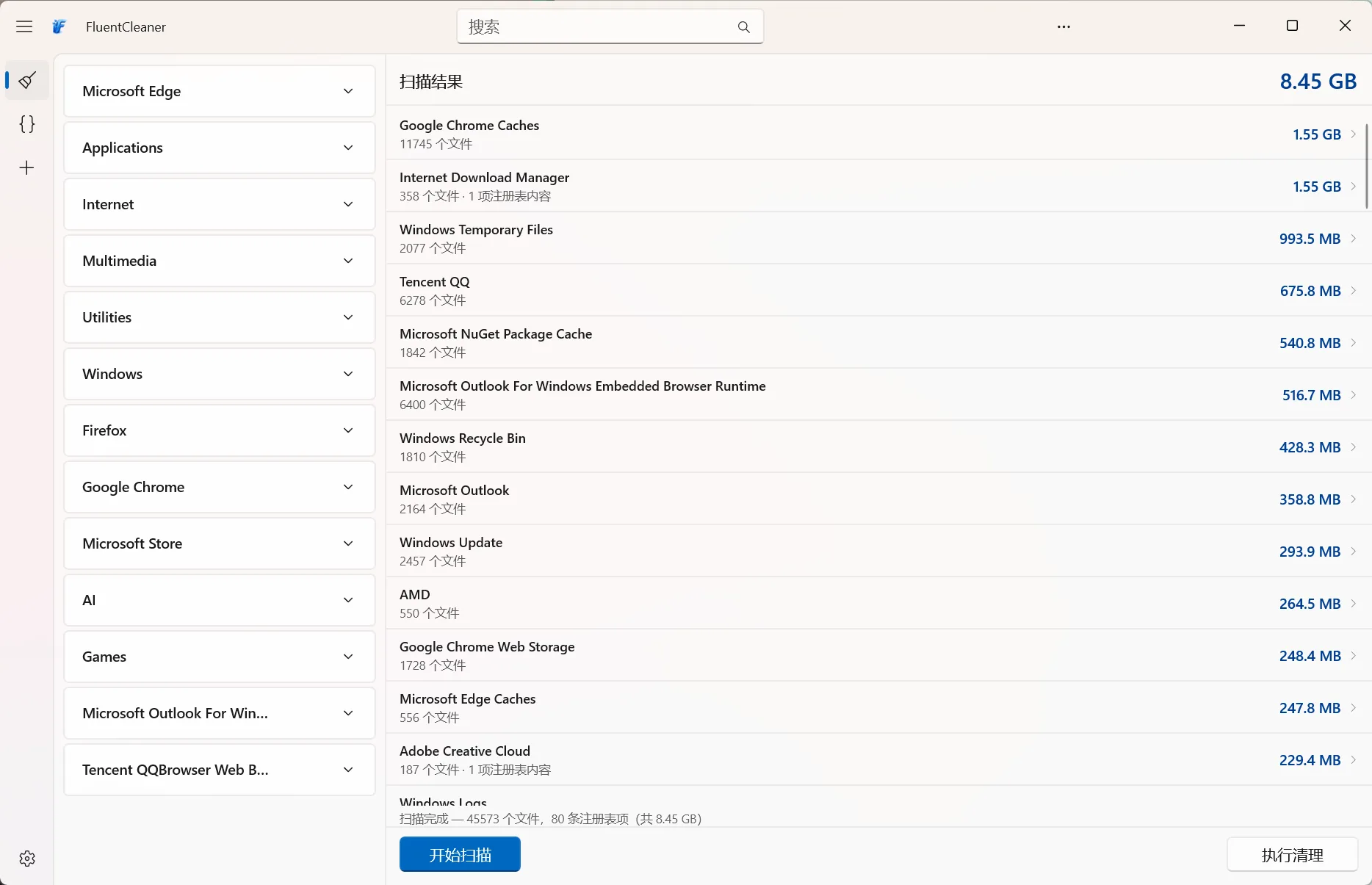
It mainly cleans up:
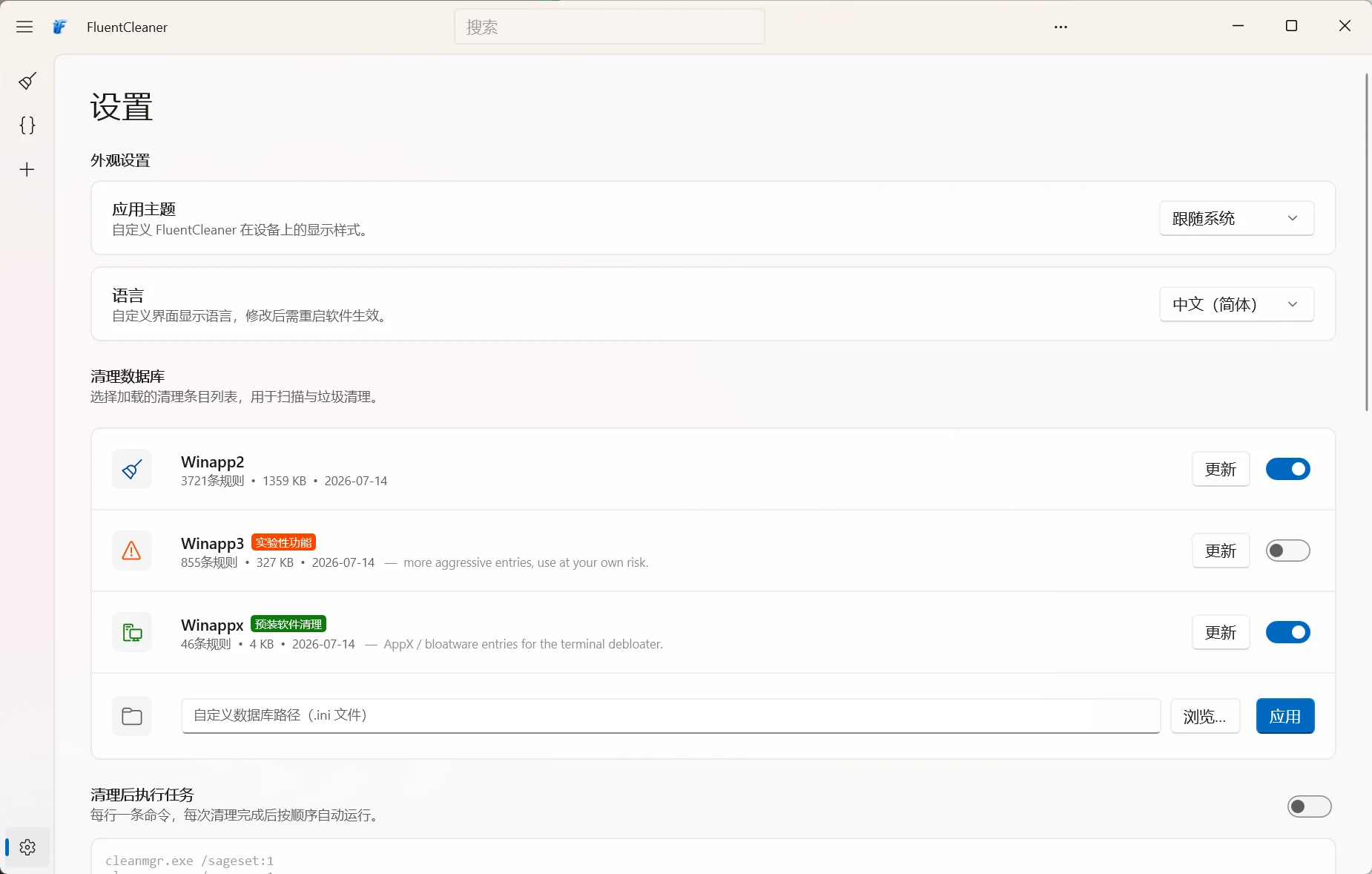
FluentCleaner uses the Winapp2.ini cleaning rule database. This is a community-maintained Windows software cleaning database that records specific cache directories, temporary file paths, and related registry items for different software.
Open the FluentCleaner GitHub project page, go to the Releases page.
Find the latest stable version, in the Assets area, download the archive suitable for your computer.
For ordinary Intel or AMD Windows computers, generally choose:
FluentCleaner-win-x64.zipSome Windows on ARM devices with Snapdragon processors can choose the ARM64 version. Later versions of FluentCleaner have added native ARM64 support, applicable to some Surface, Snapdragon, and Copilot+ PCs.
It is recommended to download only from the official GitHub project, not using repackaged versions from third-party download sites.
FluentCleaner is portable software, no traditional installation required.
After downloading the archive:
FCleaner.exe.Since it is a relatively new independent open-source software, on some computers it may trigger Microsoft Defender or SmartScreen warnings. Users have also reported the program being blocked by Windows in the GitHub discussions.
If prompted, don’t blindly allow it. First confirm the download source, filename, and release version are correct.
After first launch, go to the settings page to check the database.
If the software prompts that the database has an update, click to update. The latest version has fixed the issue where a failed database download could cause the program to crash.
Beginners are advised to use the default database, not to enable overly aggressive rules, and not to import custom scripts of unknown origin.
Go back to the Cleaner page and click Analyze.
After scanning finishes, review the files found under each category.
For the first time, I suggest not checking all items. Prioritize:
These items are usually easy to judge.
Pay special attention to the following:
Cache deletion can usually be regenerated, but may cause software to start slower the first time or require re-login.
For uncertain items, first uncheck them, then handle after understanding their purpose.
After confirming selections, close running browsers and related software, then click Run Cleaner.
After cleaning, the software will display the freed space.
It is not recommended to do deep cleaning every day. For ordinary users, cleaning once a month, or when disk space is obviously insufficient, is generally enough.
FluentCleaner is currentlyfree and open-source.
What I find most appealing about FluentCleaner is not that it can clean more GB than other tools, but that it doesn’t intentionally complicate a simple task.
Open the software, scan, check results, delete.
No pop-ups urging you to get a membership, no describing your computer as about to break, no anxiety-inducing ‘registry issues’ or ‘performance scores’.