
KeePassXC - 2.7.12
A cross-platform, open-source password manager that stores credentials in an encrypted local KDBX database.
A cross-platform, open-source desktop client for synchronizing files with a Nextcloud server.
112.45 MiB0 Already downloaded Mobile view
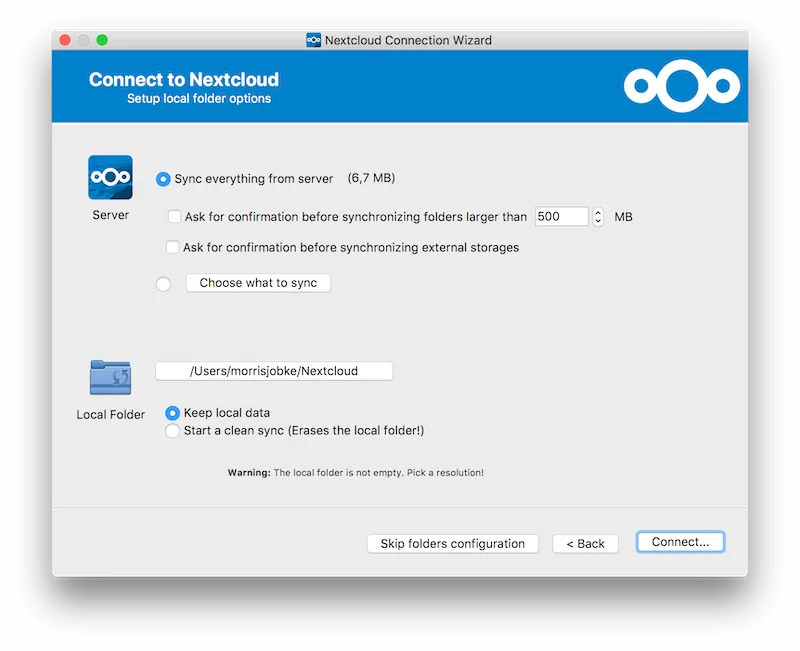
Nextcloud Desktop is Nextcloud’s official desktop synchronization client, used to synchronize folders on the server with Windows, macOS, or Linux computers. After the file is placed in the local synchronization directory, the client will upload changes and download remote updates in the background, and use status icons to prompt synchronization completion, pause, offline, or conflicts.
It is suitable for users who already use Nextcloud self-built cloud disks, team servers or hosting services. Compared with just uploading files in the browser, the desktop client can integrate the cloud directory into the daily file management process, and you can also select only necessary folders to reduce local space usage.
The value of Nextcloud Desktop is to turn the open source, self-hosted file platform into a synchronization disk that is close to the system’s native form. The client adopts the GPL-2.0-or-later license, provides simplified Chinese translation, officially maintains installation packages for Windows, macOS and Linux, and continues to fix large directory, file locking and file manager integration issues.
It is not a network disk that can be used independently after installation. You must first have a Nextcloud server or service provider account that can be logged in. Synchronization does not mean backup: accidental deletions and modifications may be propagated to other devices. Important data should still be coordinated with server version control, recycle bin and independent backup. When both ends modify the same file at the same time, the client will retain conflicting copies, requiring manual judgment.
The Nextcloud Desktop client is free to download, the source code is licensed under GPL-2.0-or-later, and there are no client subscriptions or in-app advertising. When connecting to a self-built server, you need to bear the hardware, domain name, storage and operation and maintenance yourself; when choosing a third-party Nextcloud hosting service, the free space and payment plan are determined by the service provider.
For individuals and teams that have deployed Nextcloud, this client is the most direct desktop entry. Selective sync, multiple accounts, file manager status and sharing menu cover common needs, and cross-platform support also facilitates mixed device environments. The official repository continues to be active, and its long-term maintenance and data integrity are relatively reliable.
Its learning cost is not mainly in the client interface, but in server address, permissions, storage quotas and conflict handling. Before connecting for the first time, you should confirm that the server is available and start synchronizing from a small number of directories; if synchronization is regarded as the only backup, misoperation and ransomware may also affect cloud files.
The current stable version is 34.0.1, released on August 5, 2026. The official Windows x64 MSI is about 112.45 MiB, the Linux x86_64 AppImage is about 63.94 MiB, and the macOS PKG is about 141.48 MiB. This maintenance update fixes an issue that may cause stuck when targeting a file, optimizes large folder enumeration performance, and improves macOS local network access, activity menu, disconnected account menu, Windows directory locking, and Finder extensions.