Syncthing - 2.1.3
An open-source tool for synchronizing selected folders directly between multiple devices.

An open-source client-side encryption tool for protecting files before they reach cloud storage.
54.94 MiB0 Already downloaded Mobile view
Cryptomator is a free and open source software for encrypting cloud disk files. It will first create a vault on the computer. After the files are put in, the content, file names and directory structure will be encrypted, and then uploaded by synchronization tools such as OneDrive, Dropbox, Google Drive, and Nextcloud. The cloud disk stores ciphertext, and after being unlocked locally, a virtual disk that can be read and written normally will appear.
This process does not require registering a Cryptomator account, nor is it bound to a certain cloud service. It is suitable for people who are already using cloud disks but do not want to upload contracts, documents, photos or work information directly in clear text. Cryptomator is not responsible for synchronization and backup. The cloud disk client still needs to be installed as usual, and the password and recovery key also need to be kept by the user.
Cryptomator completes client-side encryption before files leave your computer, protecting content with AES 256-bit keys while handling file names and directory structures. The vault can be placed in any service that can synchronize local folders. Multiple vaults can be created on the same computer and passwords can be set separately.
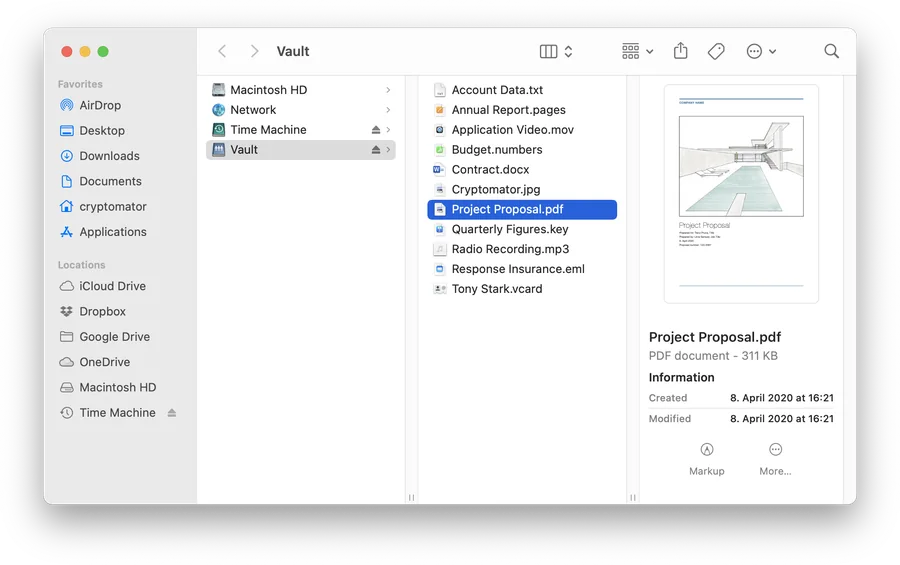
The unlocked vault will be mounted as a virtual disk. Users can continue to open, edit, and save files using Explorer or Finder without first exporting the data to another location. Once the vault is locked, the plain text content can no longer be read by a normal file window.
The software also provides recovery keys, event viewing and vault repair tools. The recovery key can reset the password when you forget it. It has high permissions and should be saved separately from the computer you use every day. Event viewing will prompt synchronization conflicts, damaged files, etc., making it easier for users to determine whether the vault needs to be processed.
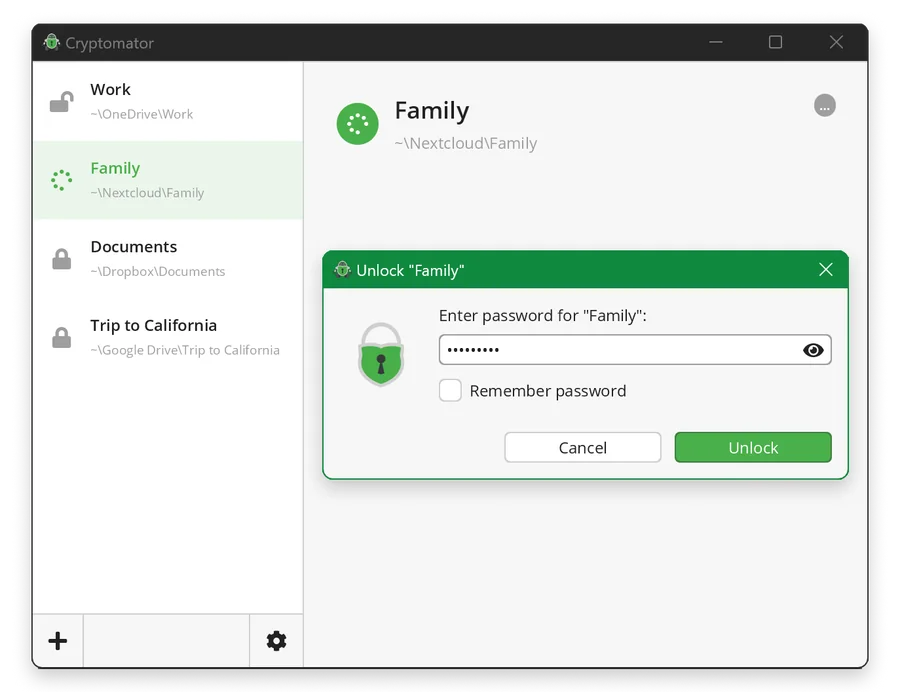
The desktop version of Cryptomator puts all common operations into a graphical interface. After Windows users download the installation program, they follow the wizard to create a library, select a directory, and set a password. The two main actions they face later are unlocking and locking. It does not require a command line or a self-built server, and existing cloud disks can still be used.
Encryption brings a layer of responsibility that must be taken seriously. Cryptomator cannot retrieve forgotten passwords for users, and the development team cannot see the contents of the vault. It’s a good idea to generate a recovery key when you create your vault, print it, and keep it in a safe place or in a reliable password manager. If the cloud disk retains file history, changing a weak password will not re-encrypt the old version that has been uploaded. Important data needs to be created in a new vault and then migrated.
It also cannot hide the total file size, synchronization time and approximate size. The cloud disk service can still see a batch of encrypted files, but it cannot directly read the file names and contents. When multiple people are editing at the same time, cloud disk synchronization has not yet been completed, or the network is interrupted, conflicts may still occur, and the vault cannot replace another offline backup.
masterkey.cryptomator file in the existing vault from Cryptomator. Scans of personal documents, tax documents and family photos can be encrypted before being put into the cloud disk. Freelancers need to synchronize contracts and project data between multiple computers, and they can also manage them separately using different vaults. Students and researchers can continue to use familiar cloud disk directories when saving documents that have not yet been made public. If a small team only needs to share a small number of sensitive files, they can first evaluate the risk of synchronization conflicts in ordinary vaults before deciding whether to use Cryptomator Hub with permission management.
The situations where it is not suitable are also clear. People who frequently forget their passwords and are unwilling to save recovery keys may be locking themselves out of data. For teams that need multiple people to edit the same batch of large files in real time, synchronizing ordinary cloud disks with vaults will increase the cost of conflict handling. Users who only use it on mobile phones should also consider that the mobile writing function requires a one-time payment.
The features and encryption capabilities of the Windows, macOS, and Linux desktop versions are available for free with no subscriptions or ads. Supporter certificates are mainly used to unlock desktop dark mode and fund development, without affecting core encryption functions. The free versions of Android and iOS can only be read-only. The writing function needs to be purchased separately at one time. The licenses for each platform cannot be used universally.
The desktop application source code adopts GPLv3, and commercial licenses are also provided to manufacturers that require different licensing conditions. The official icon used in this article is from the Cryptomator media pack, and the icon itself is licensed under CC BY-SA 4.0.
The strength of Cryptomator is that the process is intuitive enough. It does not require changing cloud disks, and there is no need to learn new file management methods after unlocking. The full functionality of the desktop version is free, the source code and security architecture are public, and ordinary users can start directly from the official installation package.
Its thresholds focus on passwords, recovery keys, and synchronization habits. There is no customer service backdoor when the vault is damaged or the key is lost, and you must spend a few extra minutes to save the recovery materials during the first setup. It is suitable to use it as a layer of encryption before the cloud disk. If you use it as a backup tool, important links will be missed. Important files should still be kept at least one independent backup.
The current desktop stable version is 1.19.3, released on June 29, 2026. This version adds an error message when the vault import fails, fixes the problem that Windows does not correctly register the Cryptomator file extension, and also handles the update check false alarm, repeatedly opening the file name decryption window, some mount options cannot be displayed, and the local host alias remains after uninstallation. The official Windows x64 EXE installation package is 54.94 MiB.