STranslate - v 1.3.1.120
Windows multi-engine text translation tool with AI translation and OCR
Free, open-source screenshot capture and light annotation across desktop platforms.
18.15 MiB (Windows 64-bit MSI)0 Already downloaded Mobile view
Flameshot is a free, open-source desktop screenshot tool for Windows, macOS and Linux. It brings region capture, arrows, text, numbering, pixelation and saving into one capture interface. That makes it useful for how-to guides, bug reports and pointing a colleague to a specific part of a screen. This guide draws on the official website, documentation and GitHub release notes; the images are official interface illustrations.
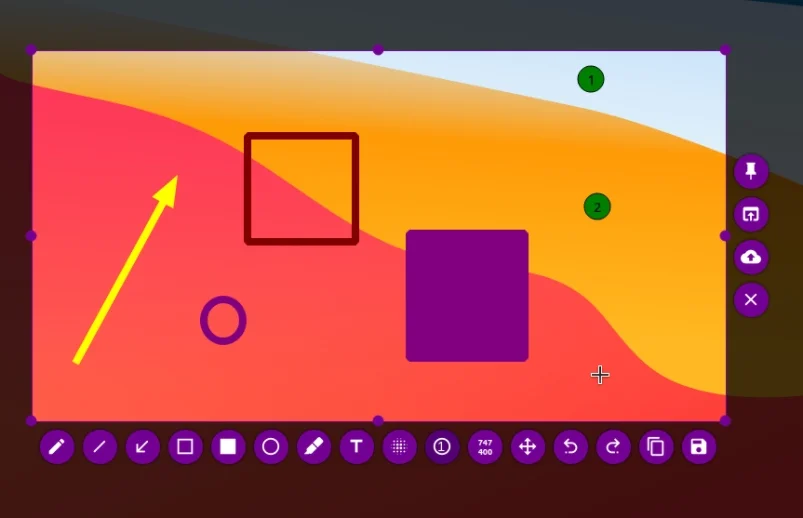
Drag to select an area, then use a pen, arrow, rectangle, circle, text, numbered marker, highlighter or pixelation tool to explain what matters. You can copy the result to the clipboard or save it as a file without switching to a separate editor. The toolbar and shortcuts can be customised, and Flameshot also offers command-line capture commands.
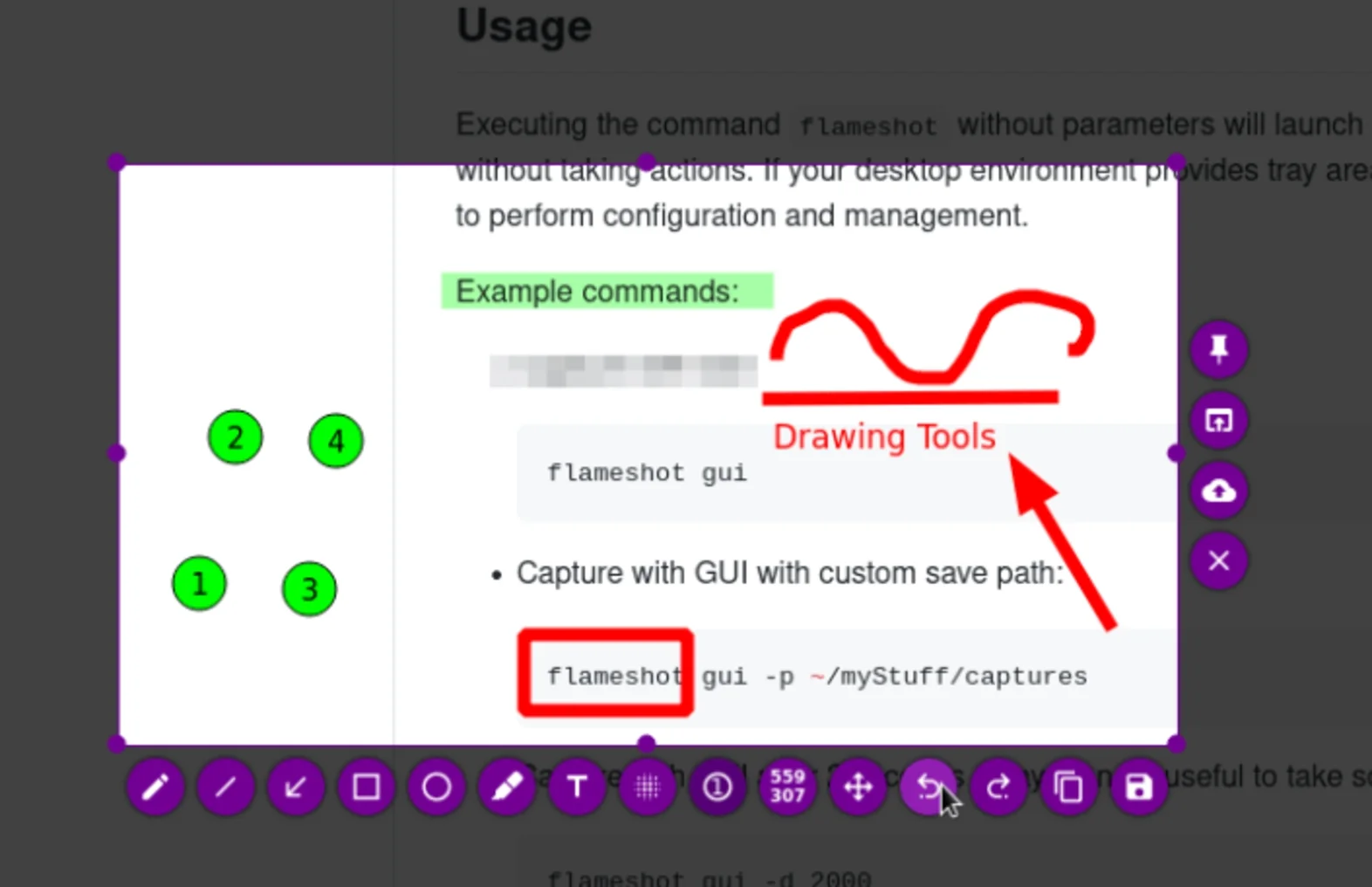
The second official image shows how arrows, boxes, numbers and local highlighting can point to a command. The images illustrate different parts of the workflow: choosing the capture area and adding focused annotations. Interface details and shortcuts may differ by version and operating system.
First, choose your operating system on the official installation page, or use the official GitHub v14.0.0 release page for its installers. The 18.15 MiB size below refers only to the Windows 64-bit MSI; macOS and Linux downloads have different sizes. Linux users can also follow the package-management options in the official installation guide.
Next, launch the graphical capture interface and drag over the area you need. Add an arrow, box, text or number to explain a step. Pixelation can hide information, but inspect the final image before sharing anything sensitive. Save the file or copy it to the clipboard when finished.
Finally, set a global screenshot shortcut that works with your system. The official guide says Print Screen commonly works on Windows and Shift+Command+X is the default on macOS. On Linux, Print Screen often needs a manual binding to `flameshot gui`. Check for conflicts with an existing system shortcut.
Numbered callouts can guide readers through a tutorial; a box and short note can make a bug report clearer. For remote collaboration, review and conceal account details before sending an image. Flameshot focuses on quick captures and light annotation, so elaborate compositing or page layout belongs in a dedicated editor.
On Linux Wayland, screen-capture permissions and desktop portals are controlled by the system, so behaviour depends on the desktop environment. If captures or shortcuts fail, consult the official Wayland and shortcut guides. Flameshot also offers an optional Imgur upload action; it is not required to save a screenshot. Avoid accidental uploads when handling private material.
Flameshot is free and open source, and its official GitHub repository lists GPL-3.0 as its licence. Its appeal is the short path from capture to annotated image. Whether it works smoothly for you depends especially on your operating system’s shortcut, screen-permission and multi-monitor setup.
As of October 17, 2026, the latest stable GitHub release was v14.0.0, published June 19, 2026. It improved multi-monitor and fractional-scaling support, changed the monitor-selection workflow and fixed issues across platforms. Multi-monitor users may need to adjust to the new screen-selection step. The Windows 64-bit MSI is about 18.15 MiB; confirm current files on the official release page.
Flameshot website, installation guide, shortcut guide and v14.0.0 release notes.