AntennaPod - 3.11.4
An ad-free, open-source Android podcast player with RSS subscriptions and offline playback.

Free and open-source video screencasting tool
1 Already downloaded Mobile view
Usually watching videos on your phone isn’t a great experience. The screen is small, the sound is mediocre, and especially for web videos, if you want to watch them on TV, you often have to mess around with various players or third-party screencasting apps.
Recently I discovered a tool called PlayBridge an open-source tool. Its focus is simple: the phone searches for and controls content, then casts the video to a large screen device such as a TV or computer.
PlayBridge is a free and open-source local screencasting project that mainly solves the problem of playing content from a phone and connecting to large screen devices. It supports Android TV, Apple TV, Windows, macOS, Linux, browser extensions, and other desktop platforms. The project is currently in alpha development.
Compared to many commercial screencasting apps, PlayBridge’s biggest appeal is: no ads, no account binding required, and the code is fully open. It’s quite friendly for users who like tinkering with open-source tools.
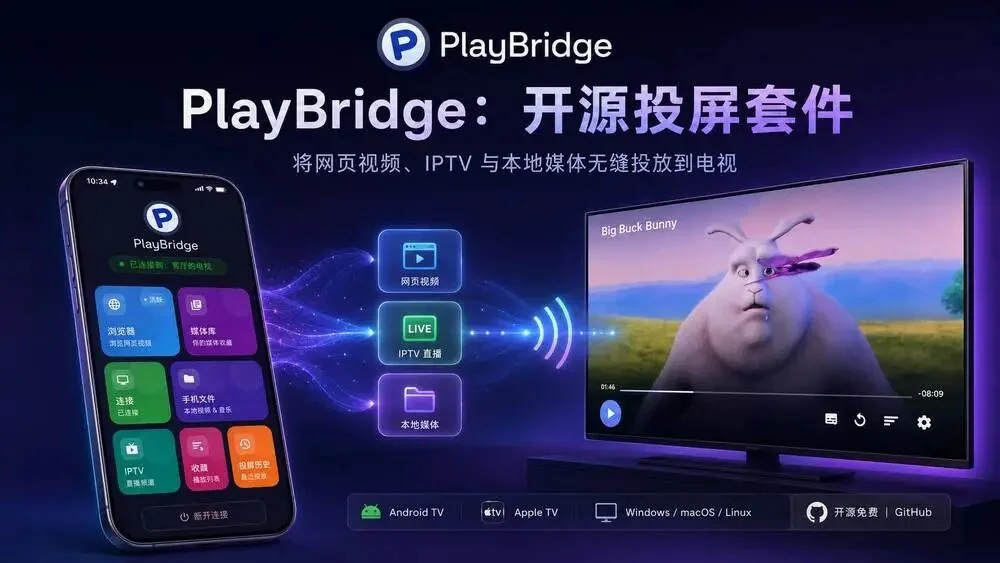
PlayBridge’s core feature is browsing web content on the phone and then identifying video resources in the page. (Currently, the sender is only available for Android phones).
In simple terms, you can search for videos just like browsing the web normally. When PlayBridge detects a playable video stream, it can send it to other devices for playback.
This logic is similar to some traditional screencasting tools, but it leans more towards open-source and local experience.
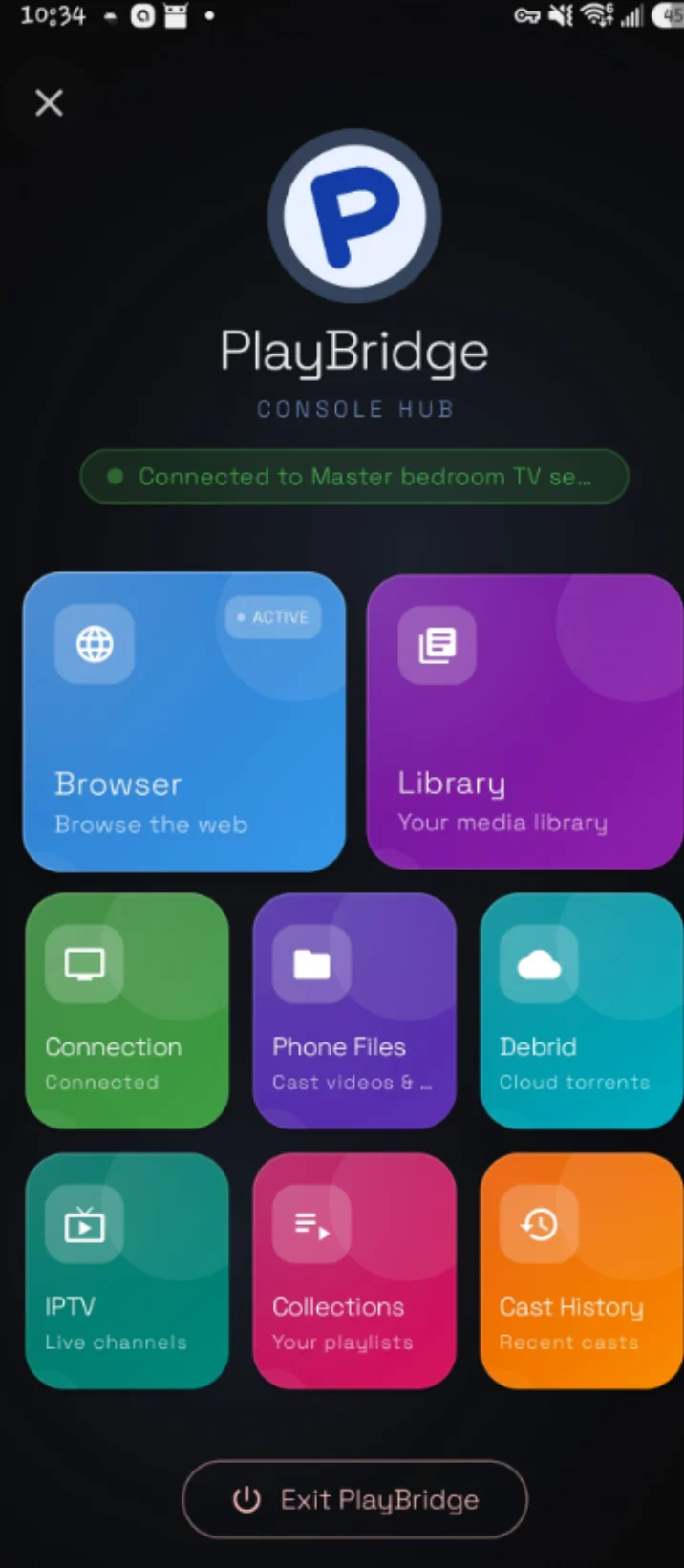
PlayBridge isn’t just for connecting to TVs.
Currently supported receivers include:
This way, if you have different devices at home, you can try using a unified screencasting solution.
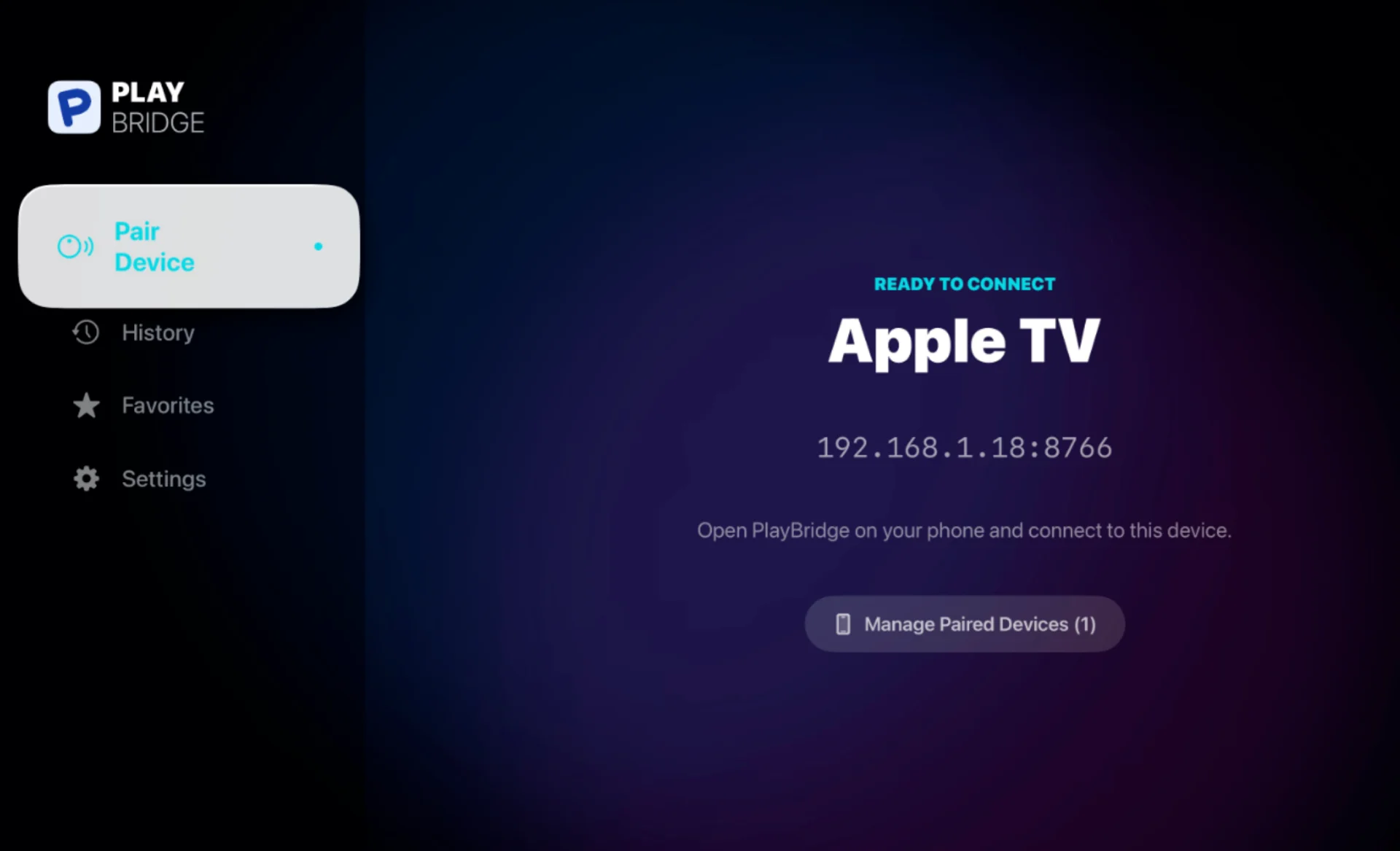
In addition to directly sending video streams, PlayBridge also supports casting webpage content.
For example, if a video on a certain website cannot be directly extracted, you can try sending the entire webpage to the receiving device, letting the large screen load and play it.
PlayBridge’s design philosophy emphasizes privacy.
It mainly relies on local network communication, so the casting process doesn’t need to upload videos to third-party servers, making it more reassuring for home use.
Below is a brief introduction to the basic usage process.
First, go to the GitHub project page:
https://github.com/playbridgeapp/playbridge
Install the corresponding version for your device.
Currently, the project provides a phone sender app, and TV and desktop receiver apps.
Make sure your phone and TV/computer are on the same WiFi network.
Because PlayBridge communicates primarily over the local network, devices need to be interconnected.
Open the PlayBridge phone app and visit a video site in the built-in browser.
After finding the video you want to watch, wait for the program to identify the video resource.
Select a device that has PlayBridge receiver installed.
After successful connection, the video will be sent from the phone to the large screen for playback.
PlayBridge is currently a free open-source project.
It has no subscription fees or membership restrictions.
The project uses the GPLv3 open-source license, allowing users to freely use, study, and modify the code.
However, note that the project is still in alpha, so stability and feature completeness may still be under continuous improvement.