Inkscape - 1.4.4
An open-source vector graphics editor for logos, icons, illustrations, diagrams, and SVG artwork.
A cross-platform collaborative drawing app with real-time painting, session controls, and animation tools.
22.75 MiB0 Already downloaded Mobile view
Drawpile is a free and open source collaborative drawing software that supports Windows, macOS, Linux and Android. It also provides a web version that can be opened directly. Several people can enter the same canvas at the same time, and each other’s brushstrokes will appear in real time. It can also be used as a normal drawing tool when you just want to draw alone.
The software puts brushes, layers, selections, transforms and color blends into a familiar desktop interface, and also adds session passwords, user permissions, chat and canvas history. It’s suitable for doodling with friends, remote painting exercises and small creative activities. Official public servers allow users to create sessions for free, and in most cases do not require account registration.
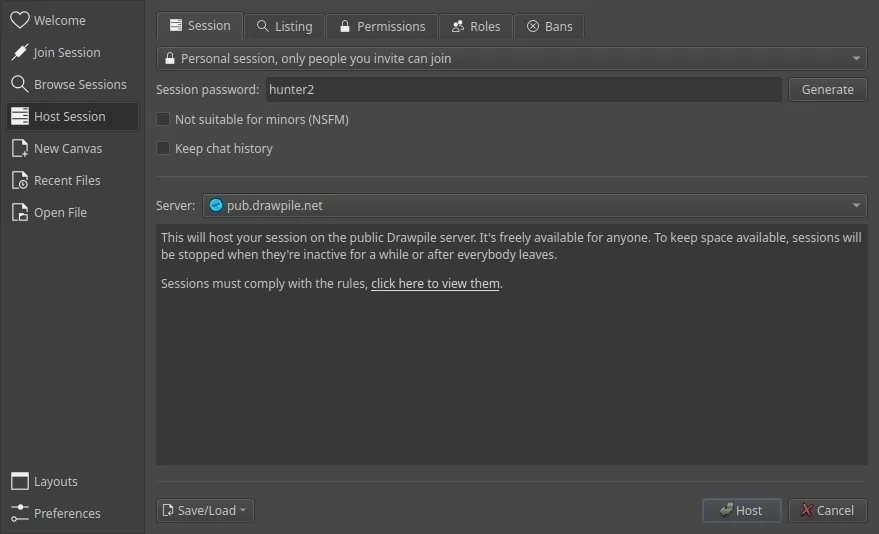
Drawpile’s collaboration capabilities are in the drawing interface, and the host does not need to deploy the server first. Open the “Host Session” page of the start dialog box, select a public server and set a password, and then send the invitation link. The official document recommends that ordinary users give priority to using public or community servers. The built-in server of the machine requires port forwarding and exposes the home network address, so it is not suitable as the default choice.
Public conversations require moderator management. The more people there are, the busier the host will be. Canvass that anyone can join may encounter malicious modifications. The official permission levels, layer locking and banning tools can only reduce risks and cannot replace manual care. When creating content that needs to be kept private, you should set a session password and check the rules and privacy policy of the server you are using.
The interface provides Simplified Chinese, and the main branch still retains complete Chinese translation files. The function density is also relatively high, and new users will see multiple panels such as brushes, layers, user lists, and chats at the same time. Start with a small conversation first. After you learn to draw offline, it will be easier to figure out the role of each area when you enter a password-protected collaboration session.
Drawpile client, server and web version are all free and open source software, and the source code adopts GPL-3.0 license. Official installation packages for Windows, macOS, Linux and Android are free to download, the software and official website are ad-free, and public servers allow hosting of regular sessions for free. When users rent servers or domain names by themselves, the relevant costs still need to be borne by themselves.
Drawpile is very suitable for replacing “sending files to others for modification” into a real-time shared canvas. It retains the layers, brushes, and selection tools required by independent painting software, and you can control who can change what content during collaboration. For acquaintance groups, the process of setting a password and sending an invitation link is enough.
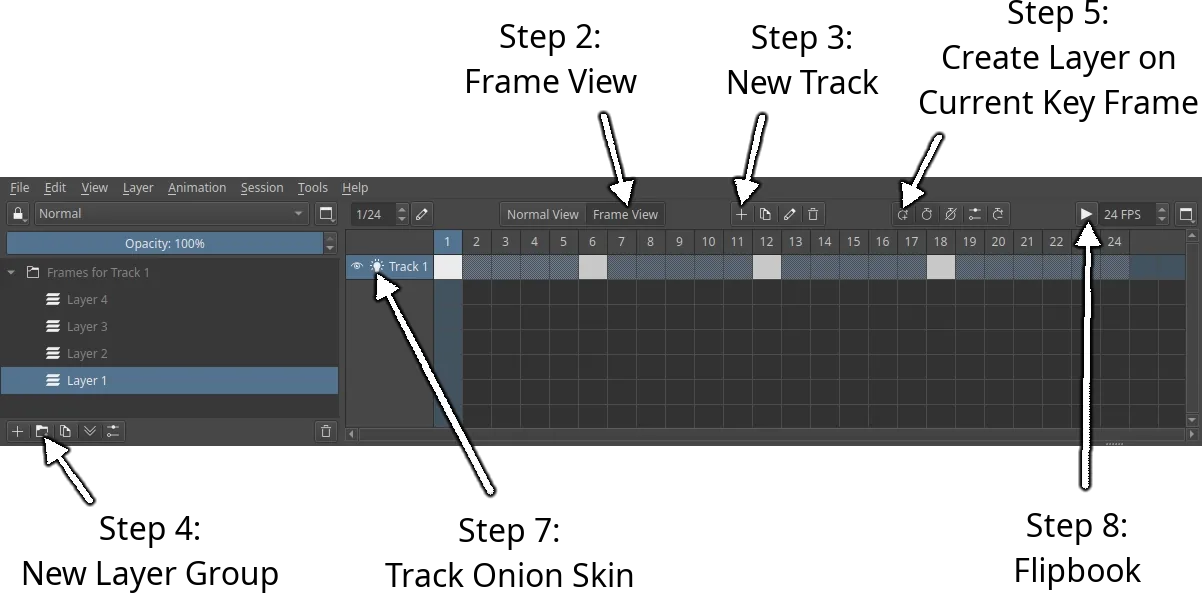
Its threshold mainly comes from interface and session management. When you open it for the first time, you will see a lot of panels, and you need to carefully deal with permissions, rules, and member behavior in public conversations. People who only need a lightweight whiteboard will find it to have too many tools. Users pursuing a professional illustration workflow should first confirm whether the brushes, colors and file formats are in line with their own habits. Multiplayer drawing and simple animation fall right into the realm of what it does best.
The current stable version is 2.3.0, which was released on November 19, 2025, and the macOS correction version was subsequently updated on November 22. This version adds DPCS canvas format, gradient and lasso fills, layer transparency locking, pixel art input and larger canvas and layer limits, as well as improved disconnection reconnection and session management. Windows x86_64 installer is approximately 22.75 MiB. 2.3.1-beta.1 has entered public testing, ordinary users can still choose the stable version first.